Setting up customers
Your Owners and Managers set up a customer’s MailConnect on its Settings tab, the same way the customer’s own Admins can, with a few extras that only partners and Pinksky have. Your Viewers see the settings, but change nothing.
The customer guides cover the basics, and you can share them: Settings, Setting up tabs, Filling SharePoint columns and Outlook category.
Signing in to the customer’s Microsoft 365
Picking SharePoint lists and content types needs you signed in to the customer’s Microsoft 365: Sign in to Contoso Ltd… at the top of the Settings tab. Use an account there, usually a guest account the customer has given you. Guests often get no SharePoint search results: paste a link to the site instead. If Microsoft asks you to accept permissions, cancel: MailConnect isn’t set up in that tenant yet.
The sign-in reads only, in your browser, and is logged. See Signing in to your Microsoft 365 and What the Admin Center can do in your tenant, which you can share with the customer’s IT.
Features
The customer’s feature cards show the features released to everyone. On top of those, you see:
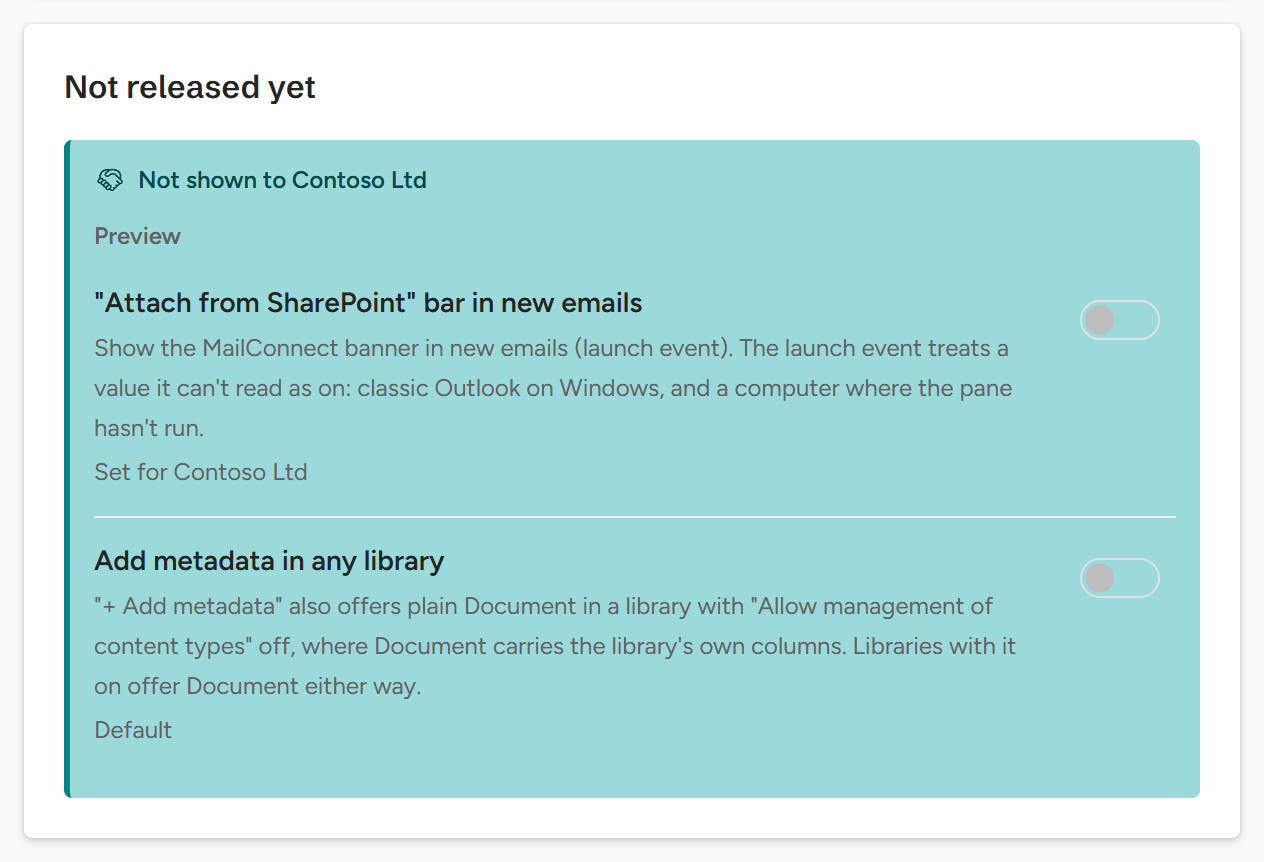
- Not released yet → Preview (🤝 Not shown to Contoso Ltd): features not yet released to everyone. With Early access, you can switch them on for your customers. The customer then sees them too, read-only, marked Early access.
- Included in …: features above the customer’s plan. With Beyond plan, you can switch them on anyway.
Pinksky gives each partner these two rights. Without them, ask Pinksky to switch such a feature for you. Switching a feature off is never limited by the plan, and a change reaches the customer’s users the next time they open MailConnect.
Tabs
You can do everything the customer’s Admins can on Tabs in the add-in. On top of that, only you and Pinksky set up custom endpoint tabs: Add tab → Custom endpoint… (🤝).
| Field | What it sets |
|---|---|
| Name in Outlook | The tab’s name. |
| Address | The endpoint MailConnect asks for the locations, as each person: a GET request with their tokens. |
| App ID | The app registration in the customer’s Microsoft 365 that MailConnect gets each person’s tokens from. |
| Tokens sent | MailConnect’s default, a SharePoint token in X-SP-Access-Token, or Choose the tokens: each with its type, header, prefix and, for a Custom token, scopes. |
| Hide locations people can’t open | Checks each location’s site for the person, and leaves out the ones they can’t open. |
The address can carry the endpoint’s own key. Your Owners and Managers see and edit it in full, in the card and in its History. Your Viewers, and the customer, see it shortened. The customer’s Admins can rename, move and star an endpoint tab, but not change or remove it.
Check the endpoint…, in the pane next to the tabs, lists what the endpoint returns for your account. It asks first, because it sends a SharePoint token for your account to the endpoint’s host, and the check is logged. Only SharePoint tokens are sent, from MailConnect’s own app: an endpoint that only accepts its own app’s tokens refuses the check, even when the tab works in Outlook.
Building the endpoint itself, with its tokens, what it returns and its app registration, is under Custom endpoint tabs.
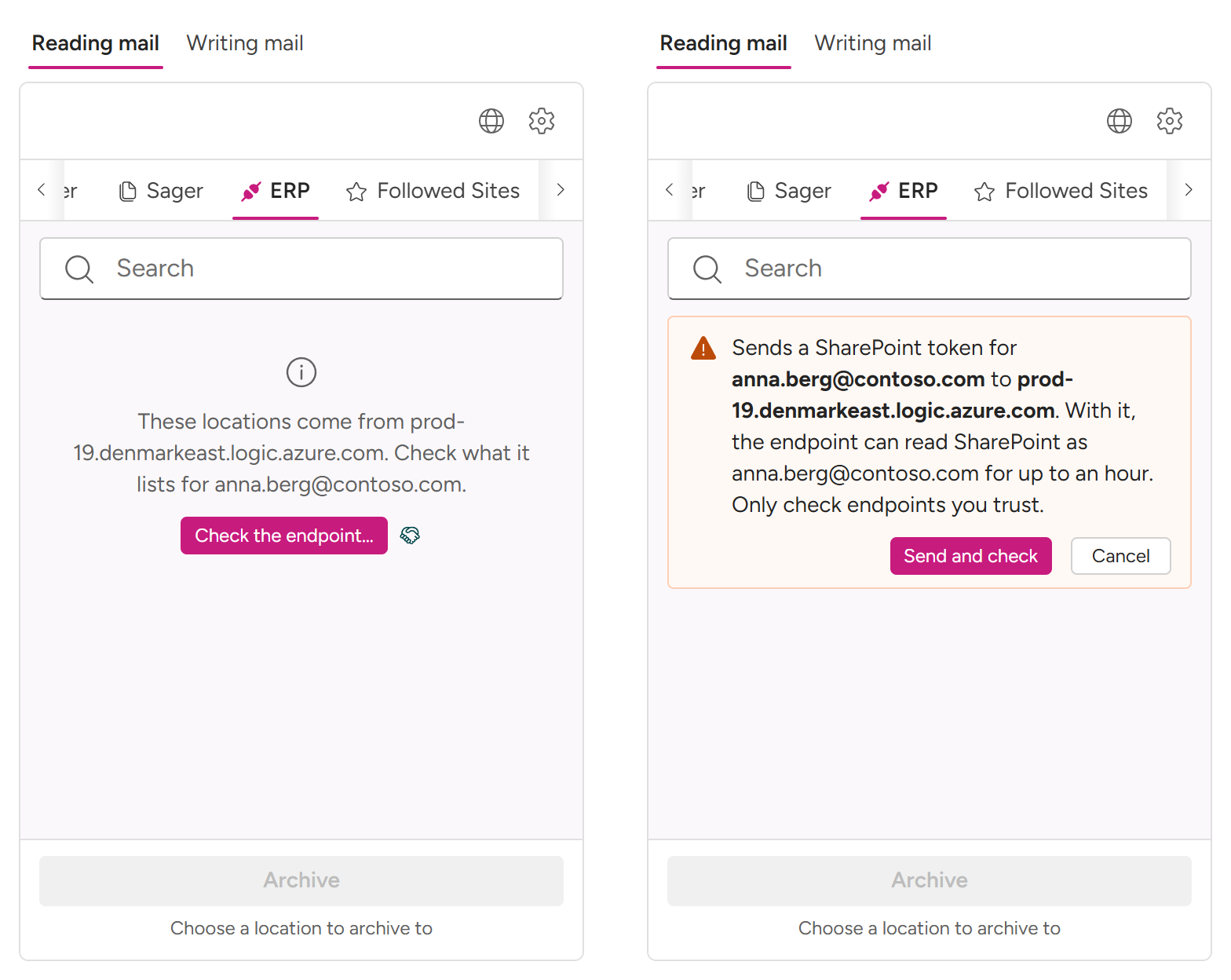 Left: the endpoint tab. Right: after Check the endpoint…, the confirmation.
Fill SharePoint columns
This works as for the customer: see Filling SharePoint columns. Creating MailConnect’s content types needs a SharePoint admin, or an owner of the customer’s Content Type Hub. If Microsoft refuses your guest account, the first step fails before anything is created, and the dialog says why: the customer’s own admin can then sign in and create them.
Whether the card’s switch can be turned on also depends on the feature’s stage and the customer’s plan, and on your rights, as for any feature.
What only you and Pinksky see
Parts of a customer’s pages that the customer doesn’t see sit in a tinted strip at the bottom of a card, marked 🤝 Not shown to Contoso Ltd. Tabs, column headers and menu items carry the 🤝 mark instead. Hover over the mark to see who sees it.
| Where | What |
|---|---|
| Usage | The seat gap: Microsoft 365 users beyond licensed seats. |
| People | Employees with access: who at Fabrikam can see the customer. |
| Overview | Demo tenant. |
| Settings | Preview features, Custom endpoint…, and endpoint addresses in full. |