Your partner pages
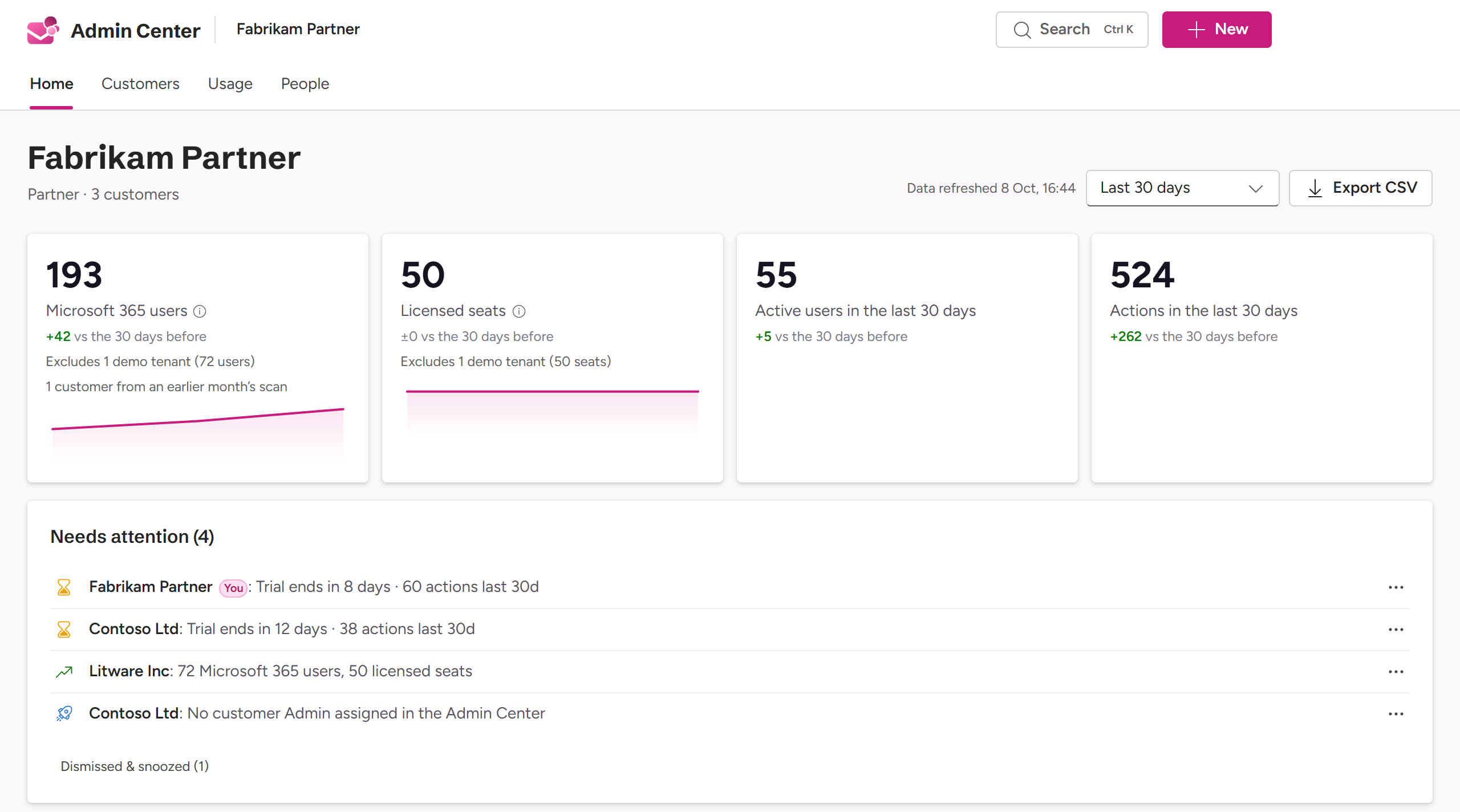
When you sign in to the Admin Center, you start on your own pages: Fabrikam Partner, with its tabs. Each customer has its own pages below it.
Getting around
| The path | The top bar shows where you are, for example Fabrikam Partner / Contoso Ltd. Select a part to go there. |
| ▾ | Next to a customer’s name in the path: switches to another of your customers, and keeps you on the same tab. |
| Search | Ctrl K (⌘ K on a Mac) jumps to any of your customers, by name or tenant ID. |
| New | On your pages: Start trial and Add employee, for those who may. On a customer’s pages: Add user. |
| On phones | The path and the tabs are in the ☰ menu. |
Nothing is remembered between pages: each page has its own period and filters.
Your tabs
| Tab | What it’s for | Who gets it |
|---|---|---|
| Home | Headline numbers, Needs attention, and the activity trend. | Everyone at Fabrikam with access |
| Customers | All your customers side by side. | Everyone |
| Usage | Usage across your customers. | Everyone |
| People | Your employees and what they can reach: see Your team. | Owners |
Home
Four headline numbers for the selected period, each compared with the period before: your customers’ Microsoft 365 users and licensed seats, active users, and actions. Demo customers and your own subscription are left out of them. Below them come Needs attention, the activity trend and a tile per tab.
Needs attention
A to-do list about your customers, as they are now:
| Kind | For example |
|---|---|
| Trial | A trial ending within two weeks, or ended (the add-in is blocked). |
| Churn risk | No activity for 14 days or more, activity falling, or a subscription cancelled. |
| Upsell | More Microsoft 365 users than licensed seats, or nearly all seats in use this month. |
| Onboarding | No usage yet, no Admin assigned in the Admin Center, or no tabs, so MailConnect would open on an empty pane. |
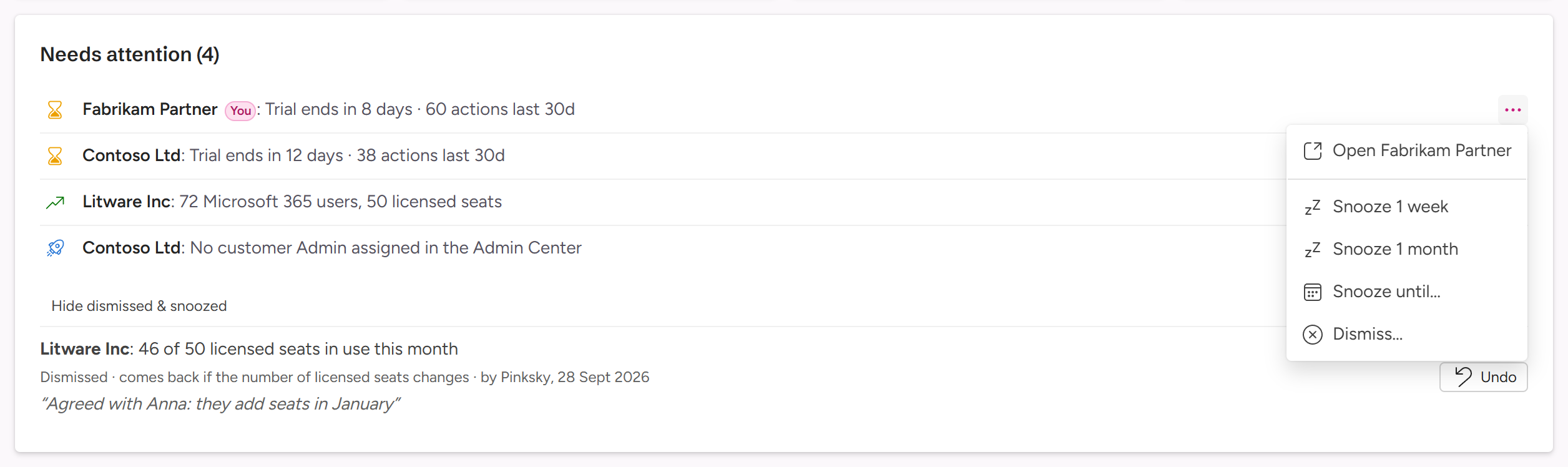
Each item has ⋯, with Open and the customer’s name (for example Open Litware Inc) and, for Owners and Managers:
- Snooze 1 week, Snooze 1 month or Snooze until…: the item comes back on that date.
- Dismiss…: the item comes back when the situation changes, for example when the trial’s end date changes or the seat gap grows.
A snooze or dismissal hides the item for everyone at Fabrikam, and for Pinksky when it looks at your pages. You can add a note for your colleagues. Dismissed & snoozed lists what’s hidden, who hid it and why, with Undo. Viewers can’t snooze or dismiss.
Customers
All your customers in one table. The figures are about now: this month and the last 30 days, whatever period is chosen elsewhere.
| Column | What it shows |
|---|---|
| Customer | The name, a Demo pill for demo customers, and You on your own subscription. |
| Plan | Trial, Pro or Enterprise, and its status. |
| Active this month | People with at least one action this month. |
| Adoption | Active users as a share of licensed seats. A * means it’s measured against Microsoft 365 users, because licensed seats aren’t set. |
| Licensed / M365 | Licensed seats, and Microsoft 365 users. |
| Seat gap | Microsoft 365 users beyond licensed seats. The customer doesn’t see this. |
| Actions, 30 days | The last 12 weeks as a small chart, the count, and its change. |
| Last activity | Shown in orange after 14 days without activity. |
| Renews | The renewal or end date, or for a trial, when it ends. |
Filter customers finds a customer by name or tenant ID. You can also filter by plan, and switch on Paid-until passed or Idle over 14 days. Your own subscription stays pinned at the top: see Your own subscription.
Start trial is here too: see Customers and trials.
Usage
Usage across all your customers for the selected period: customers active, active users, the share of licensed seats in use, Microsoft 365 users and licensed seats, and actions. Then charts, Feature adoption (the share of active customers using each feature), Most active customers, and Fading: the biggest drops.
Filter by plan or by customer. Demo customers are left out unless you switch on Include demo tenants. Export gives a CSV file or a PDF report. What counts as usage is described under Usage figures.
A customer’s pages
Each customer has the tabs its own admins see: Usage, People, Overview and Settings. You also see what they don’t, in a strip at the bottom of a card marked 🤝 Not shown to Contoso Ltd: see Setting up customers.