Your MailConnect settings
Open ⋯ at the top of MailConnect, then Open Settings. Your settings are yours alone. They’re saved in a MailConnect folder in your own OneDrive, so they follow you to other computers.
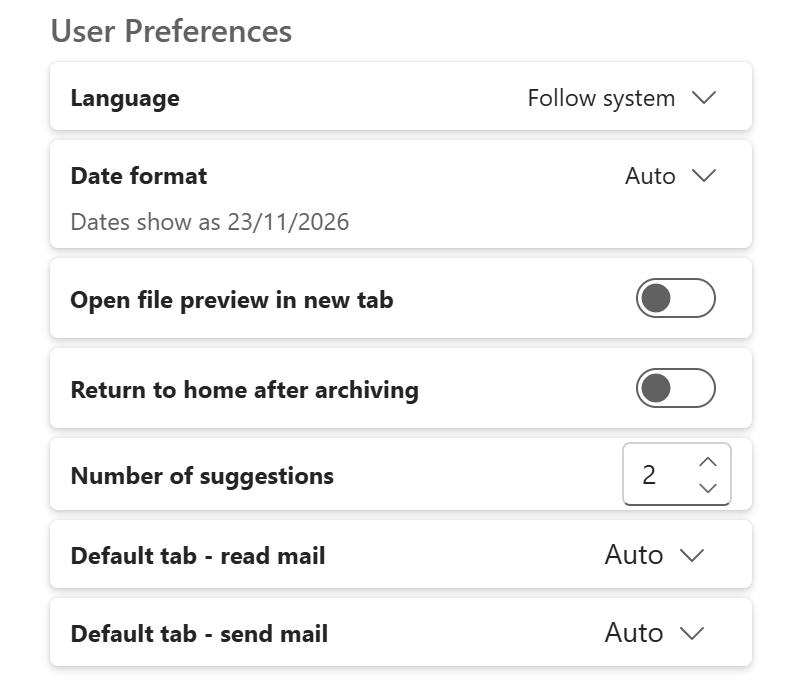
User Preferences
| Setting | What it does |
|---|---|
| Language | Follow system (the default), English or Dansk. Follow system uses Office’s language if it’s English or Danish, and otherwise your organisation’s language, or English. |
| Date format | How dates show, and how you type them in date fields. Auto follows your language and region. |
| Open file preview in new tab | Previews open in a browser tab instead of a window over Outlook. |
| Return to home after archiving | After archiving, MailConnect goes back to the start instead of staying in the folder. |
| Number of suggestions | How many suggestions to show for emails from the same sender, from 0 to 5. The default is 1. |
| Default tab - read mail, Default tab - send mail | The tab MailConnect opens on. Auto uses your organisation’s choice. Shown when there are at least two tabs to choose from. |
Some settings only show when your organisation uses the feature behind them, such as previews, archiving or suggestions.
Maintenance
| Action | What it does |
|---|---|
| Reset suggestions | Forgets where you archived emails from each sender, so the suggestions start over. |
| Clear Cache | Clears what MailConnect keeps in your browser, and loads your organisation’s settings again. Use it when something looks out of date, for example right after your admin changed a setting. |
About
About shows which version of MailConnect you have.