Adding metadata
If your organisation allows it, you can give each file you archive a SharePoint content type, and fill in its columns, before it’s saved. Your organisation decides whether Add metadata is there.
Adding metadata to a file
- In the Archive panel, or in the drop review, select Add metadata on a file.
- Content type: Choose a content type from the ones the library offers.
- Fill in its fields. Required fields have an asterisk (*), and say Required if you leave them empty.
- Done folds the form away. Edit opens it again, and Remove metadata takes it off the file.
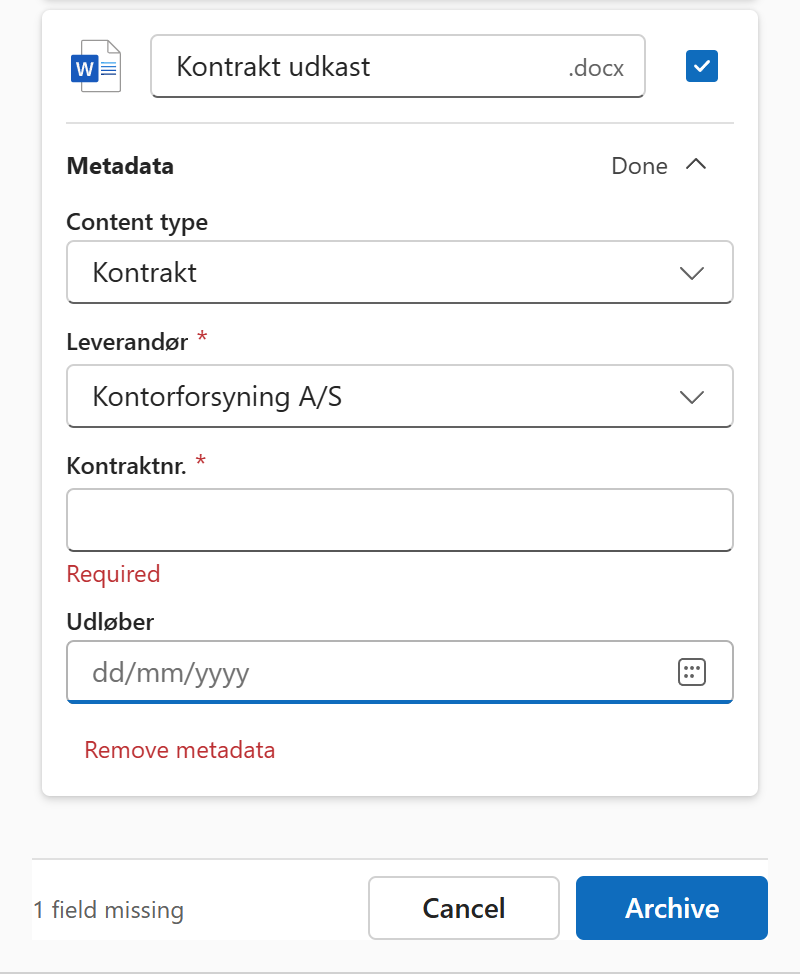
The fields work like SharePoint’s own: choices, people, dates, managed metadata terms, lookups, links, yes/no and numbers. Dates use your date format, and times are saved in the library’s time zone, which the form names.
You can’t archive until every file you added metadata to has its required fields: the panel says how many are missing, for example 1 field missing, or Metadata missing on 1 of 3 files with several files. Some required columns can’t be filled in from MailConnect. The form then says These required properties must be filled in SharePoint afterwards:, followed by their names.
Several attachments
- Copy from…, on an attachment, copies the content type and values from another attachment you’ve already filled in.
- Metadata on selected fills the same values on every ticked attachment: Metadata for 3 selected attachments. Leave a field empty if it differs per file, then select Apply to 3 selected. Undo takes it back.
If you change a file that others were copied from, MailConnect offers to update them too: Update those too.
Columns filled in by themselves
Your organisation can also have MailConnect fill in some SharePoint columns by itself, such as the sender, the subject and when the email was sent, and give archived emails and attachments their own content type. You don’t do anything for that.
If metadata couldn’t be saved, the result screen says so under the file, for example Properties were not saved or Archived, but properties could not be set, with Try again (or Edit, when a value needs changing). The file itself is archived either way.