Drag and drop
In new Outlook for Windows and Outlook on the web, you can archive by dragging things onto MailConnect. In other versions of Outlook, use the Archive button. Your organisation can turn drag and drop off.
Dropping
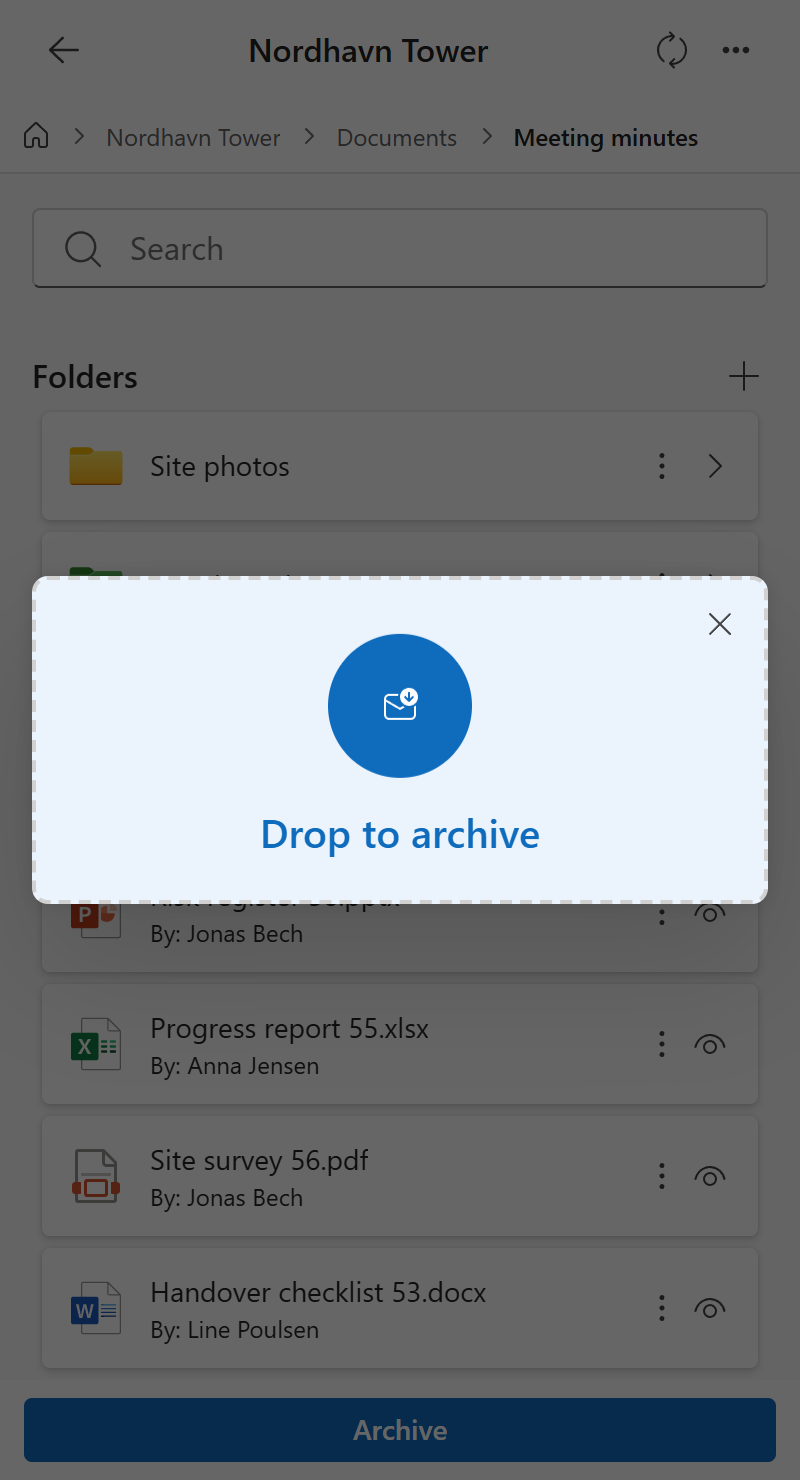
- While reading mail, open MailConnect and go to the library or folder to save to.
- Drag onto the pane: one or more emails from your message list, attachments from the email you have open, or files from your computer. The pane shows Drop to archive.
- Let go.
Attachments can only be dragged from the email that’s selected. If nothing happens, select the email first, then drag again.
Archived straight away, or reviewed first
Depending on your organisation’s settings, a drop either archives straight away, or opens a review first.
| Drop | What happens |
|---|---|
| Straight away | MailConnect saves the files and shows the result, as after Archive. |
| Review first | Each dropped file gets a card, where you can rename it and, if your organisation allows it, add metadata. Drop more files to add them to the review. Then select Archive, or Cancel. |
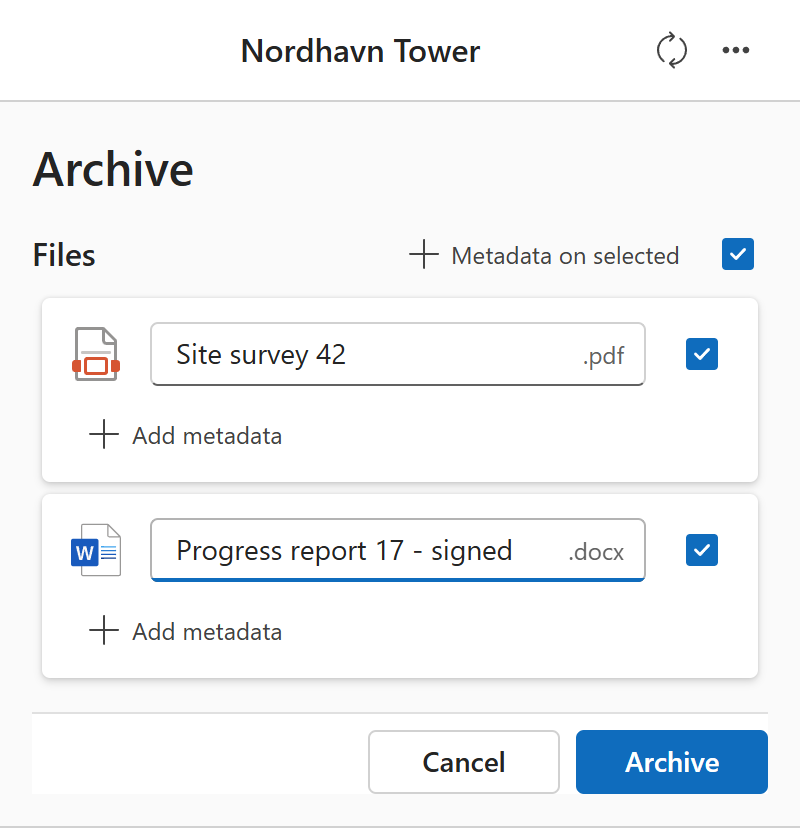
Files with the same name, names SharePoint doesn’t accept, and failures are handled as when you archive with the Archive button.