Browsing SharePoint
Tabs
The tabs at the top of MailConnect are set up by your organisation. Common ones:
| Tab | Shows |
|---|---|
| A list, for example Projects | One location per project, customer or case. Select one to see its libraries and folders. |
| A library | Its top-level folders, and any files at the top of the library. |
| Followed Sites | The SharePoint sites you follow. Follow a site in SharePoint to have it here. |
| Sites (reading mail), Organization (writing mail) | Search across SharePoint. |
With only one tab, there’s no row of tabs. The tabs can differ between reading and writing mail.
Moving around
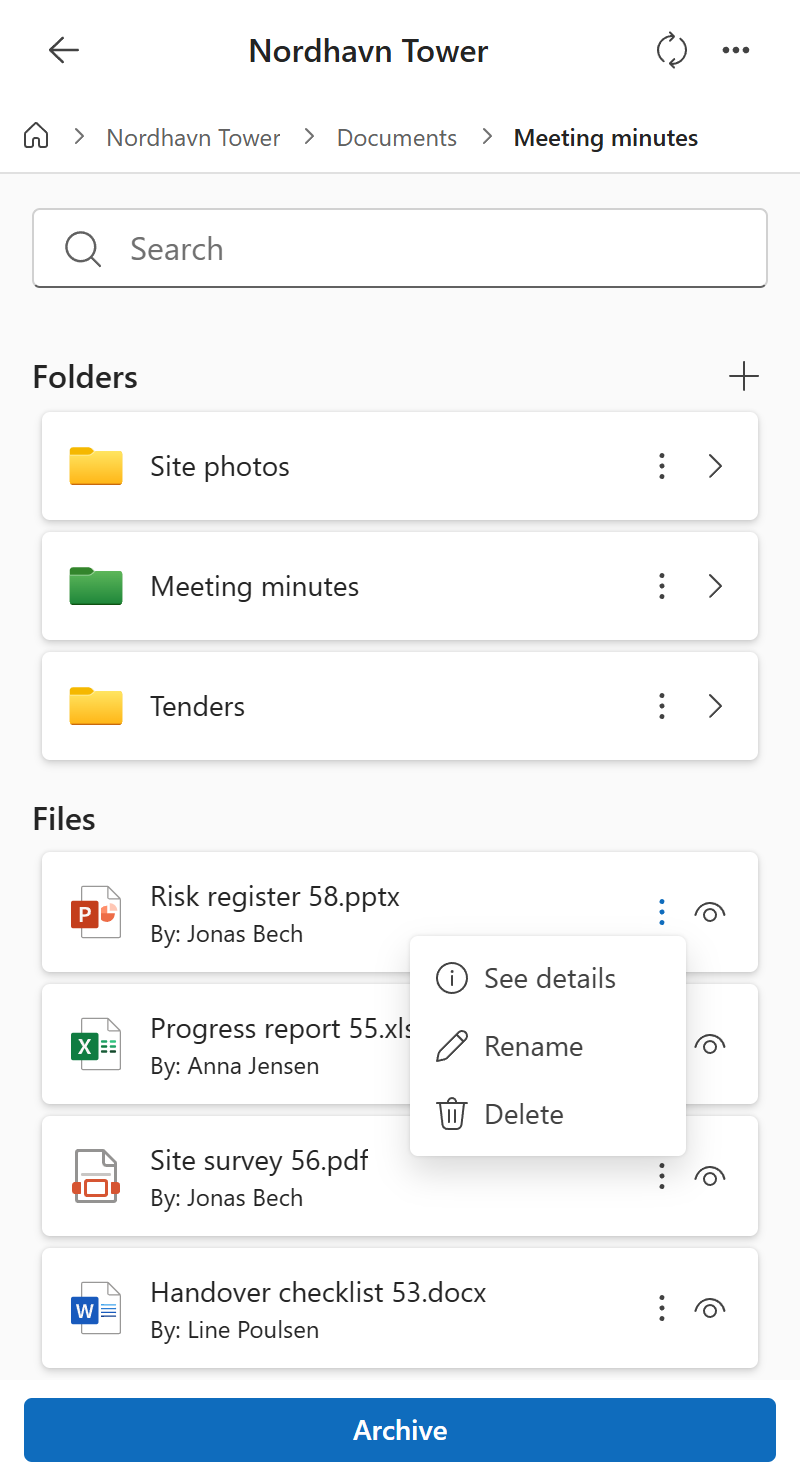
Select a location, then a library and a folder. The arrow at the top and the path under it take you back up. Open in SharePoint, in the ⋯ menu at the top, opens where you are in SharePoint.
Searching
The search box under the tabs searches the tab you’re in: a list’s locations, by their name and the columns your organisation chose, or your followed sites. Inside a library, it searches the library’s folders and files.
The search tab searches all of SharePoint you have access to:
- When reading mail (Sites), it shows sites straight away, and searches them as you type.
- When writing mail (Organization), it shows files, libraries and sites, and searches them as you type. Choose All, Sites or Files, and tick files to attach them straight from the results.
Previewing files
Select the preview button on a file to see it without downloading it. It opens in a larger window over Outlook, or in a browser tab if you’ve switched on Open file preview in new tab in your settings.
See details, on a file, shows its name, who created and last changed it and when, and its size. Your organisation can turn previews off.
Folders and files
When you read mail, you can also change folders and files:
| To | Do this |
|---|---|
| Create a folder | Select the add button next to Folders, type a name, and select Create. |
| Rename or delete a folder | Open ⋯ on the folder: Rename or Delete. |
| Rename or delete a file | Open ⋯ on the file (or right-click it): Rename or Delete. |
MailConnect asks you to confirm before it deletes anything. You can only change what your SharePoint permissions allow, and your organisation can turn each of these off.