Archiving emails and attachments
1. Choose where to save it
Open an email, then open MailConnect. Find the library or folder to save to:
- Tabs along the top, set up by your organisation: for example a list of projects or customers, Followed Sites (the SharePoint sites you follow), or Sites to search across SharePoint. Select a location, then a library, then a folder.
- Search, the box under the tabs, searches the tab you’re in.
- Suggestions, at the top, are the places you used for earlier emails from the same sender. Select one to go straight there.
You can save to any library or folder you’re allowed to add files to. Where you aren’t, MailConnect says You do not have permission to edit this location.
Until you’ve chosen a library or folder, the Archive button at the bottom is grey, and a hint above it says what’s missing, such as Choose a location to archive to.
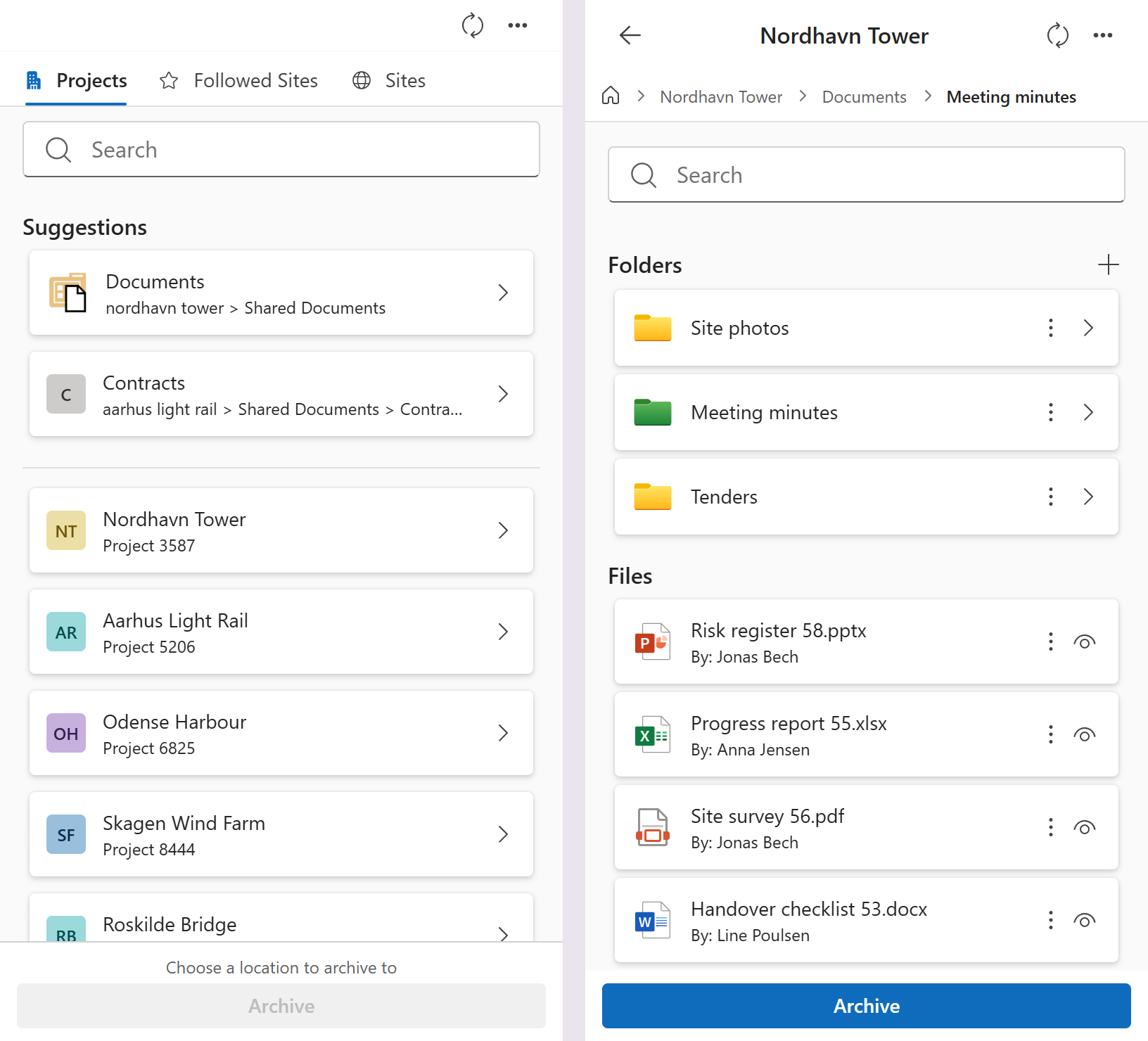 Left: before choosing a location. Right: a folder open, ready to archive.
2. Archive
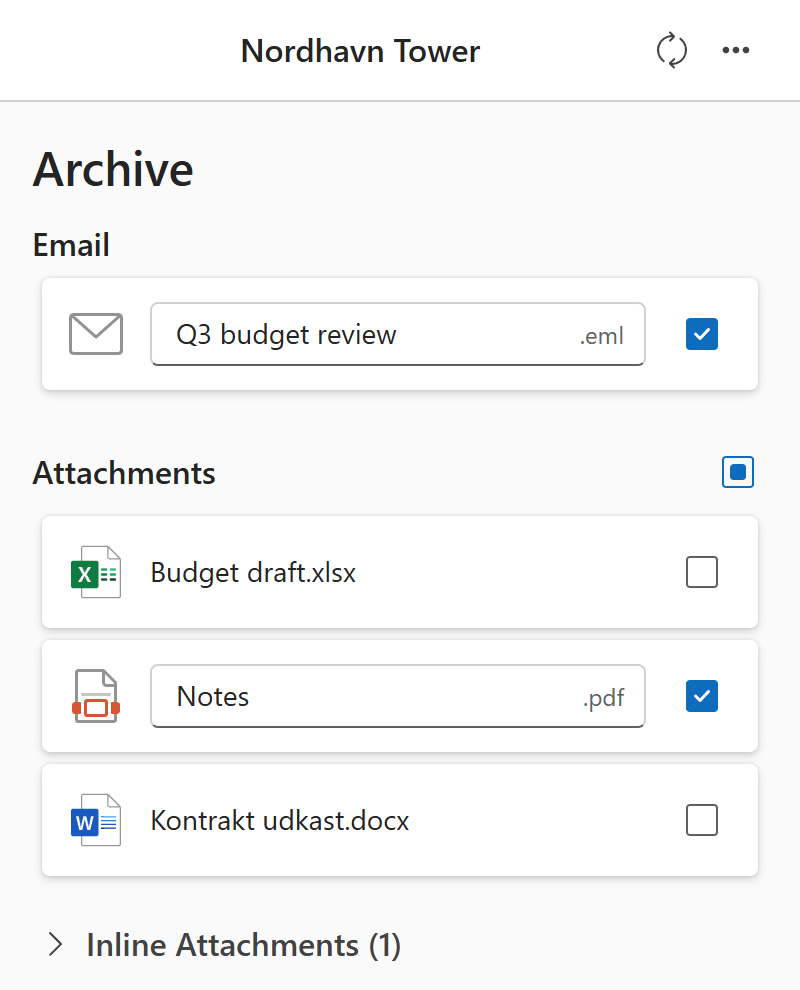
Select Archive. The Archive panel shows what you can save:
- Email: the email itself, saved as an
.emlfile, with its attachments inside it. It’s named after the subject; change the name if you want. - Attachments: tick the ones to save as separate files too, and rename them if you want.
Select Archive. MailConnect shows each file as it’s saved, then Archiving Complete. Open opens the folder in SharePoint, and the panel closes by itself after a few seconds.
If a file with the same name is already there, MailConnect asks what to do with it: Replace, Keep both or Skip. If SharePoint doesn’t accept a name, MailConnect suggests one: Use this name. If a file fails, MailConnect says why, and Try again retries just that file.
Depending on your organisation’s settings, MailConnect may then do more by itself: put an Outlook category on the email, such as Archived, or fill in SharePoint columns on the saved files. You can also add metadata yourself, if your organisation allows it.
Return to home after archiving, in your settings, takes you back to the start after each archive.
Several emails at once
Select several emails in Outlook’s message list, open MailConnect (or keep it
pinned), choose a library or folder, and select Archive. Each email is saved
as its own .eml file, named after its subject: rename any of them before you
select Archive.
This needs a recent version of Outlook, and doesn’t work in Outlook mobile. Your organisation can turn it off.
Already archived
When an email has already been archived, MailConnect says so at the bottom: Already archived, with Open location to go to where it was saved.
- Emails you archived yourself are marked when you archive them, so MailConnect knows straight away.
- Emails a colleague archived are found by searching SharePoint, if your organisation has set this up. MailConnect then says when and by whom, for example Already archived on 3 Oct 2026 by Anna Berg. SharePoint has to index the email first, which takes from minutes to hours.
Your organisation can turn either of these off.
Encrypted emails
An encrypted email shows Encrypted in the Archive panel. If your organisation allows encrypted emails to be archived, MailConnect decrypts the email as part of archiving: the copy saved in SharePoint isn’t encrypted, so anyone who can open the folder can read it. If your organisation doesn’t allow it, MailConnect shows Encrypted mail and Archiving encrypted emails is not supported.
When archiving is turned off
If your organisation has switched archiving off, the Archive button stays grey with Archiving is turned off for your organisation.