MailConnect Admin Center
The MailConnect Admin Center is a web portal, run by Pinksky ApS. As a customer, you use it to:
- follow how MailConnect is used in your organisation;
- manage who in your organisation has access to the portal;
- change MailConnect’s settings for everyone: its tabs, features and language.
It’s a website you sign in to, so nothing is installed in your tenant.
Signing in
You sign in at admin.getmailconnect.com with
your normal work account. The portal uses its own Microsoft Entra app,
MailConnect Admin Center (client ID 34205f5e-6878-4beb-9257-8698dccba83b),
separate from the two apps approved during
installation. It has two delegated
permissions:
| Permission | What it’s used for |
|---|---|
access_as_user | Lets the portal call its own API as you, so it knows who is signed in. |
User.Read (Microsoft Graph) | Shows your own profile photo in the portal. Fetched in your browser only. |
Users can normally consent to this themselves at first sign-in. If your tenant blocks user consent, an admin can approve it once for everyone: approve the Admin Center. The app is also listed under Permissions.
Personal Microsoft accounts (outlook.com, hotmail.com etc.) can’t sign in.
Who gets access
Your Entra roles don’t give access. Being a Global Administrator in Microsoft 365 doesn’t make you an admin in the portal. Access is granted per person:
- Your MailConnect partner or Pinksky ApS adds the first people from your organisation by their sign-in address.
- After that, your own Admins add and remove colleagues on the People tab.
- The first time someone signs in, their access is tied to that account in your tenant. A matching address in another tenant can’t take it over.
Anyone who signs in without having been added sees No access yet, with a button to sign in with a different account.
| Role | Can do |
|---|---|
| Admin | See everything for your organisation, add, change or remove Admins and Viewers, and change MailConnect’s settings. |
| Viewer | See your organisation’s usage, overview and settings, but change nothing. Viewers don’t get the People tab. |
Your MailConnect partner (if you have one) and Pinksky ApS can also open your organisation in the portal, to support you. Your partner’s Owners and Managers can change your settings and manage your Admins and Viewers, as your own Admins can. You never see their names: the People tab says that your partner has access, and in the portal they show as your partner’s name. Anyone at Pinksky shows as Pinksky.
What you can see and do
| Tab | What it shows | Who can change it |
|---|---|---|
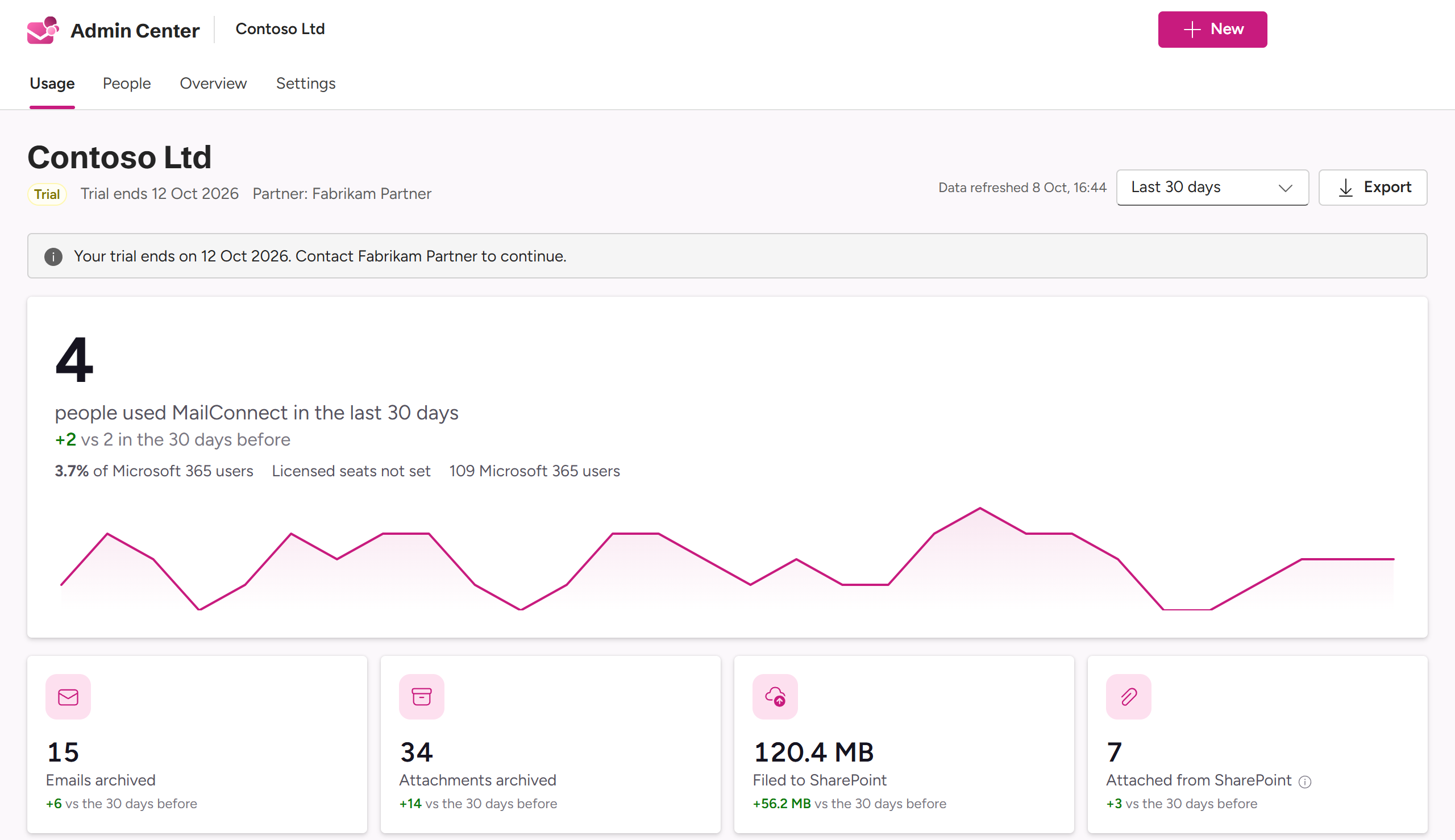
| Usage | Active users and adoption, and how much is archived, attached, previewed and searched, over time and by file type. Export as CSV or as a PDF report. See Usage figures. | Nobody: it’s read-only. |
| People | Who in your organisation has access to the portal, and recent changes. See Managing people. | Admins. |
| Overview | Your organisation’s name, partner and tenant ID, and your subscription: plan, status, the trial end or renewal date, and licensed seats. | Nobody, here: see below. |
| Settings | MailConnect’s settings for everyone in your organisation: language, features, the tabs in Outlook, SharePoint columns and the Outlook category. See Settings. | Admins. |
To change your plan or seats, contact your partner, or [email protected]. If your subscription shows a Renews date, Admins can cancel it on the Overview tab with Cancel subscription…. MailConnect keeps working to the end of the period already paid for, and the cancellation can be taken back until then with Take cancellation back.
What it can do in your tenant
The Admin Center doesn’t read your mail, your files or your directory on its own. Its usage figures come from the usage events and licence count described under Data residency.
It only reaches your Microsoft 365 when one of the people who may change your settings signs in to it from the Settings tab, to pick SharePoint lists for tabs, or to pick or create content types. That uses the MailConnect app you already approved, reads in the browser, and is logged. The only changes it can make are creating and removing MailConnect’s own content types and columns in your Content Type Hub. Everything it can do is listed under What the Admin Center can do in your tenant.
What we store for the portal
To run the portal, Pinksky ApS stores, in our own Microsoft Azure environment (Sweden Central):
- For each person with access: their sign-in address, display name, tenant ID and Entra user ID, their role, and who added them and when.
- A log of changes: who changed your people, settings and features, and when.
Your organisation’s MailConnect settings are listed under Data residency.
Questions? Contact [email protected].