Setting up tabs
The Tabs in the add-in card, near the top of the Settings tab, sets the tabs people see when they open MailConnect in Outlook, in their order. Next to the rows is a preview of MailConnect’s pane.
Every change saves straight away, and reaches people the next time they open MailConnect.
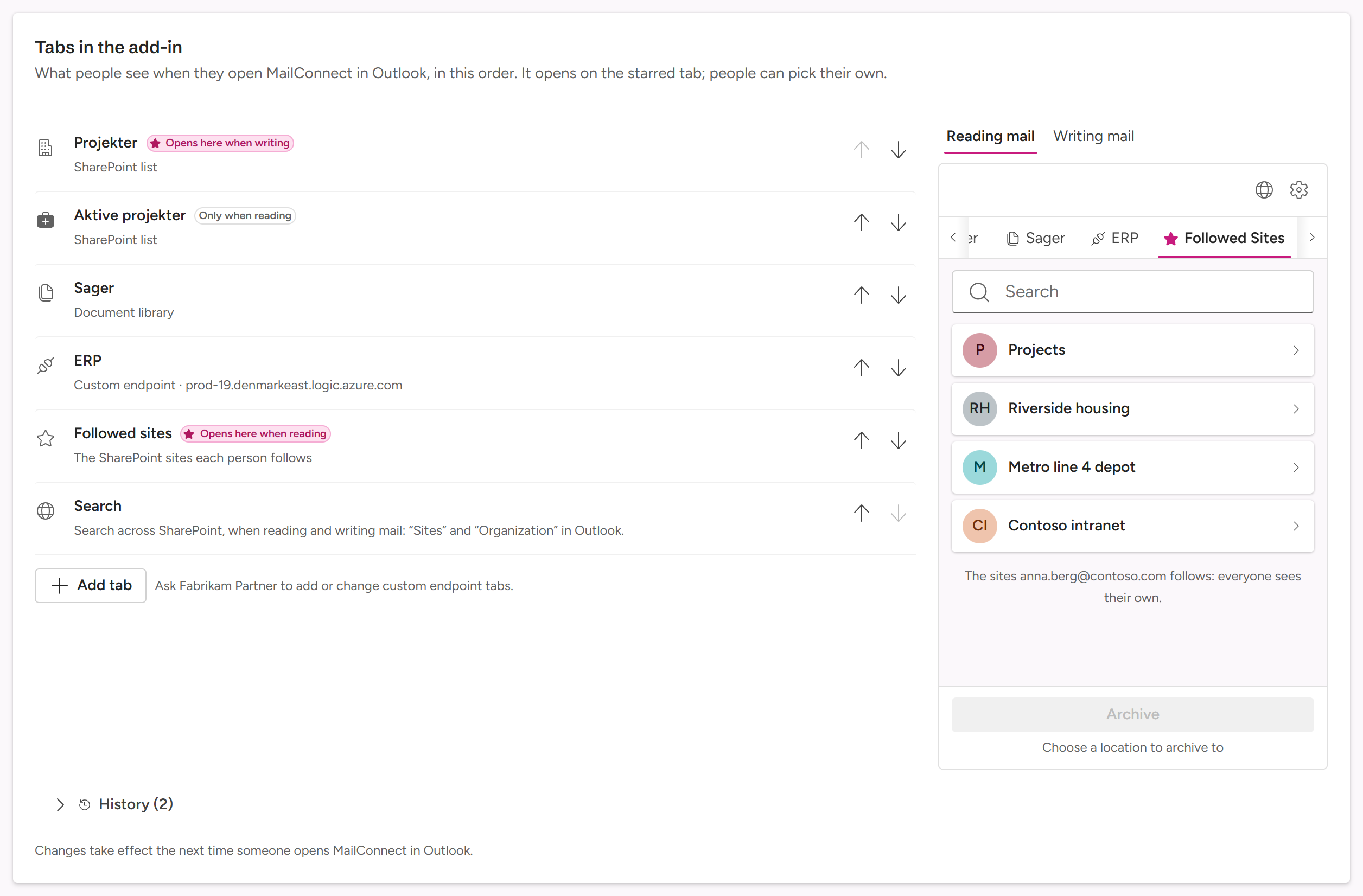
Kinds of tab
| Tab | Shows | Who adds it |
|---|---|---|
| SharePoint list | One location per item in a SharePoint list, for example your projects, customers or cases. | Admins |
| Document library | The top-level folders of one document library. | Admins |
| Followed sites | The SharePoint sites each person follows. | Admins |
| Search | Search across SharePoint: sites when reading mail; files, libraries and sites when writing. | Admins |
| Custom endpoint | Locations from your own system, through an endpoint. | Your partner or Pinksky |
Adding a tab
Select Add tab under the rows.
- Followed sites and Search are added straight away. Each can be there once.
- SharePoint list… and Document library… open a dialog where you pick from your own SharePoint. They need you signed in to your Microsoft 365: the dialog offers it if you aren’t.
A SharePoint list tab
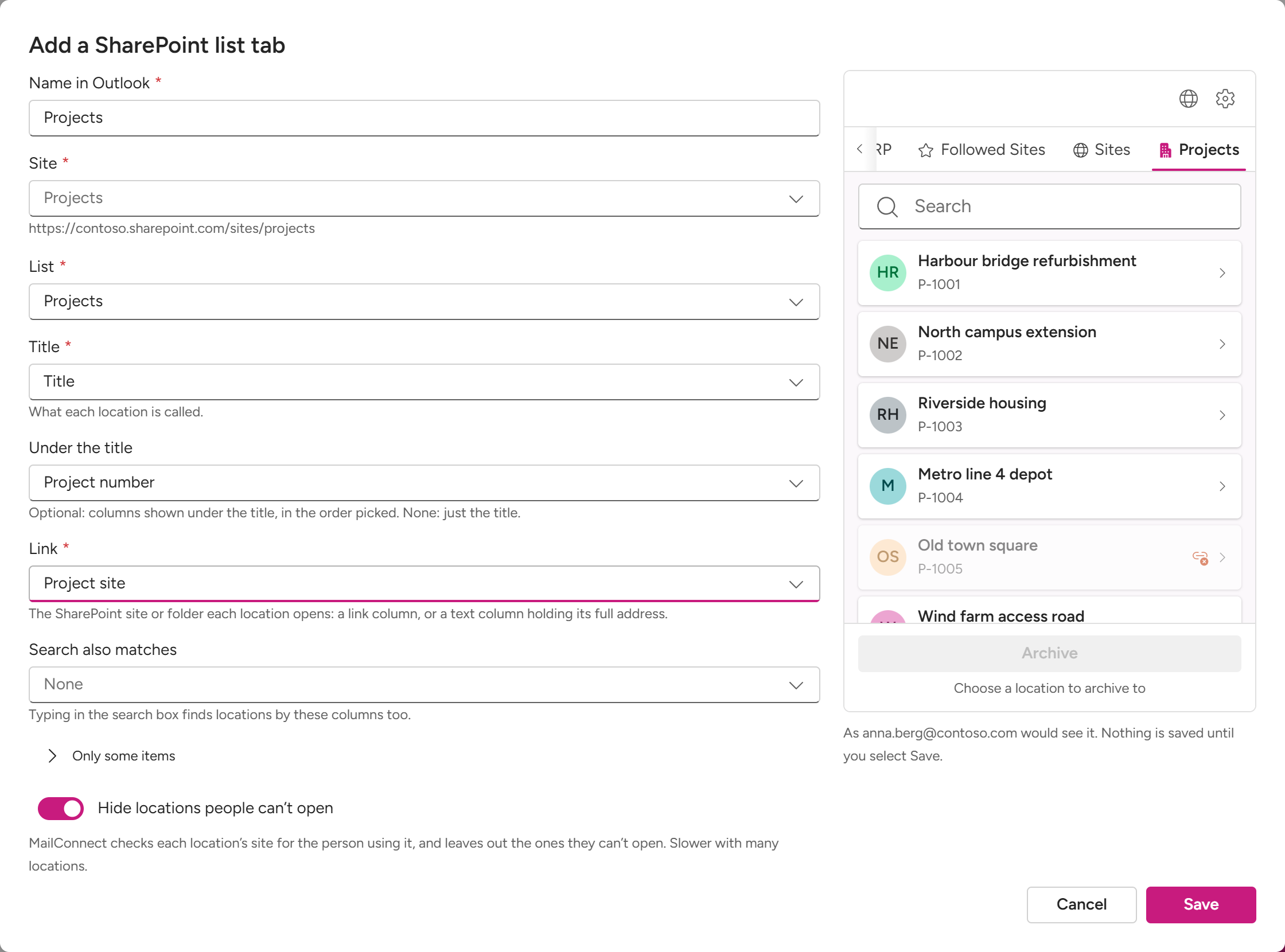
Add tab → SharePoint list…
Name in Outlook: the tab’s name. Required, and under 60 characters.
Site: pick a site, search for it by name, or paste a link to the site or anything in it.
List: pick the list.
Pick the columns:
Field What to pick Title What each location is called. Required. Under the title Optional: columns shown under the title, in the order you pick them. With two or more, a Separator goes between them ( |if you leave it empty).Link The SharePoint site or folder each location opens: a link column, or a text column holding each location’s full SharePoint address. Required. Search also matches Columns the tab’s search box also searches, besides the title and the columns under it. Only some items Optional: a Microsoft Graph filter, for example fields/Status eq 'Active'.Hide locations people can’t open: MailConnect checks each location’s site for the person using it, and leaves out the ones they can’t open. It’s slower with many locations.
The pane on the right shows the tab’s first 50 locations, as your account sees them. Select Save.
Under the title and Search also matches use a column’s value as text: text,
single choice and number columns show their value, and a link column its
description (or the address, without one). Dates and yes/no show as SharePoint
stores them, for example 2026-10-03T00:00:00Z or true. Columns that hold
several values (several choices, people or lookups) are left out. The tab loads
every item in the list.
The dialog won’t save a link column that holds values that aren’t SharePoint addresses: it shows an example of a value that isn’t. If the preview finds no locations, or can’t read the list, it asks you before saving (Save anyway).
A document library tab
- Add tab → Document library…
- Name in Outlook, then Site and Library.
- The pane shows the library’s top-level folders. Select Save.
Changing a tab
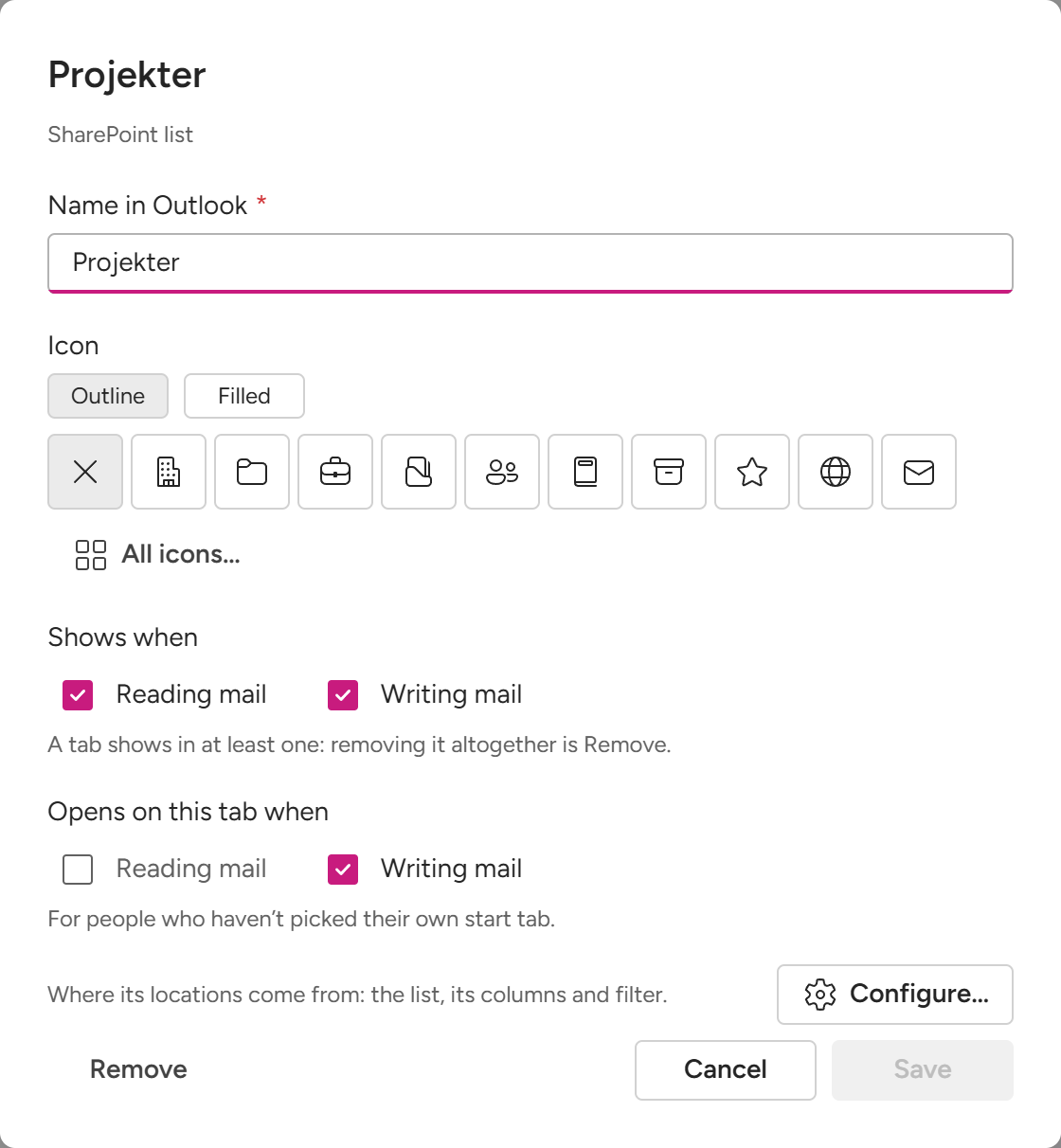
Select a tab’s row to open its properties. Select Save when you’re done.
| Property | What it sets |
|---|---|
| Name in Outlook | For list, library and endpoint tabs. Followed sites and Search use MailConnect’s own names, in each person’s language: Followed Sites, and Sites when reading or Organization when writing. |
| Icon | Outline or Filled, from a few suggestions or All icons…. The ✕ tile uses the icon for the kind of tab. In Outlook, the open tab shows the filled version. |
| Shows when | Reading mail, Writing mail, or both. A tab shows in at least one: to take it away altogether, use Remove. |
| Opens on this tab when | Reading mail, Writing mail, or both. For people who haven’t picked their own start tab. |
| Configure… | Where a list’s or library’s locations come from: the dialog above. |
| Remove | Takes the tab away. The list or library itself stays as it is, and History can put the tab back. |
The order and the start tab
- Move a tab with the up and down arrows on its row. The order here is the order in Outlook.
- The star shows where MailConnect opens: Opens here, or Opens here when reading or when writing. Set it in the tab’s properties.
- Only when reading or Only when writing marks a tab that shows in one mode only.
People can pick their own start tab in MailConnect’s settings, in a mode that has at least two tabs. Their own choice comes first, then the starred tab, then the first tab.
The preview
Next to the rows is MailConnect’s pane, as Outlook shows it. Reading mail and Writing mail switch between the two modes, and you can select any tab in it.
Signed in to your Microsoft 365, each tab shows what it lists for your account: a list’s or library’s first 50 locations, the sites you follow, and what a search finds. The labels are MailConnect’s own, in your organisation’s language.
Warnings
- MailConnect opens on an empty pane when reading mail (or writing mail): there’s no tab to show in that mode. Add Followed sites and Search fixes it in one go.
- A tab with a problem has a warning under it, for example No name: give it one.
- The card refuses a change that would leave no tab in a mode, or make more than 30 tabs.
History
History, under the card, lists every change: what changed, when, and who made it. Restore puts the tabs back as a change left them, and As they were before that restores the tabs from before the oldest change. A restore is itself a new change.
Custom endpoint tabs
A custom endpoint tab gets its locations from your own system, for example an Azure Logic App, called as the person using MailConnect. Its address and tokens can carry keys, so your partner or Pinksky sets it up: the card says Ask Fabrikam Partner to add or change custom endpoint tabs. You can still rename, move and star an endpoint tab, and set its icon and modes. Its address is shown shortened.
Questions? Contact [email protected].