Filling SharePoint columns
Fill SharePoint columns, a card on the Settings tab, gives every archived email and attachment a content type, and fills SharePoint columns from the email: who sent it, the subject, when it was sent. It’s set up once for your whole organisation. People don’t do anything for it in Outlook.
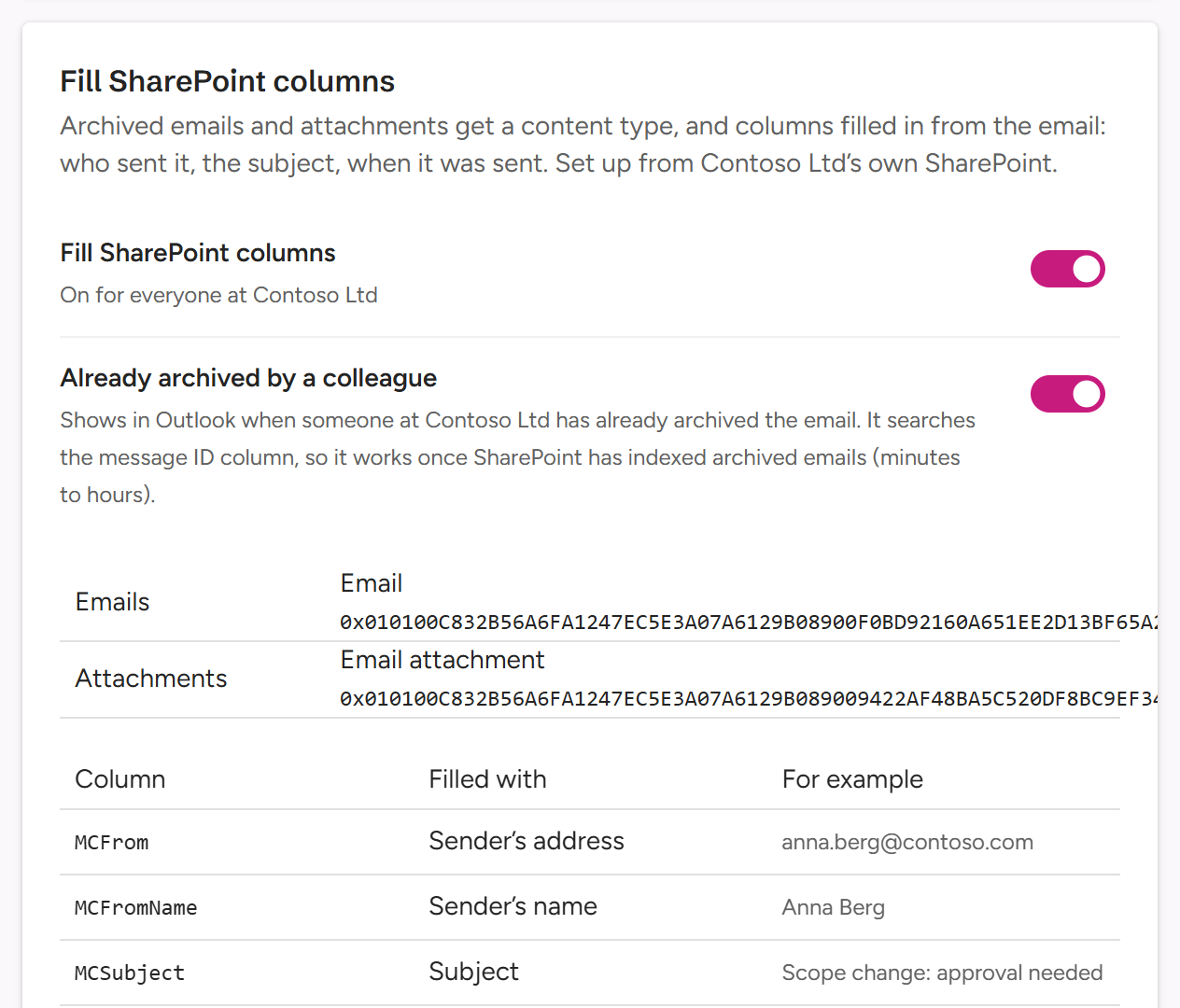
What gets filled
| Column filled with | For example |
|---|---|
| Sender’s address | [email protected] |
| Sender’s name | Anna Berg |
| Subject | Scope change: approval needed |
| Message ID | <[email protected]> |
| Conversation ID | AAQkAGI2ZWQ1NDkzLTAx… |
| To | “James Carter” <[email protected]> |
| Cc | “Sarah Miller” <[email protected]> |
| Sent | 3 Oct 2026, 10:42 |
The same columns are filled on the email and on its attachments: an attachment gets its email’s sender, subject and dates.
Archived emails (.eml files) get one content type, and attachments another.
They must be two different content types, neither built on the other: otherwise
an email whose attachments alone were archived would look archived. With no
content type for attachments, they keep the library’s default.
The content types come from your Content Type Hub. MailConnect adds them to a library the first time something is archived there, which takes a moment.
Setting it up needs you signed in to your Microsoft 365. You can use MailConnect’s own content types, or your own.
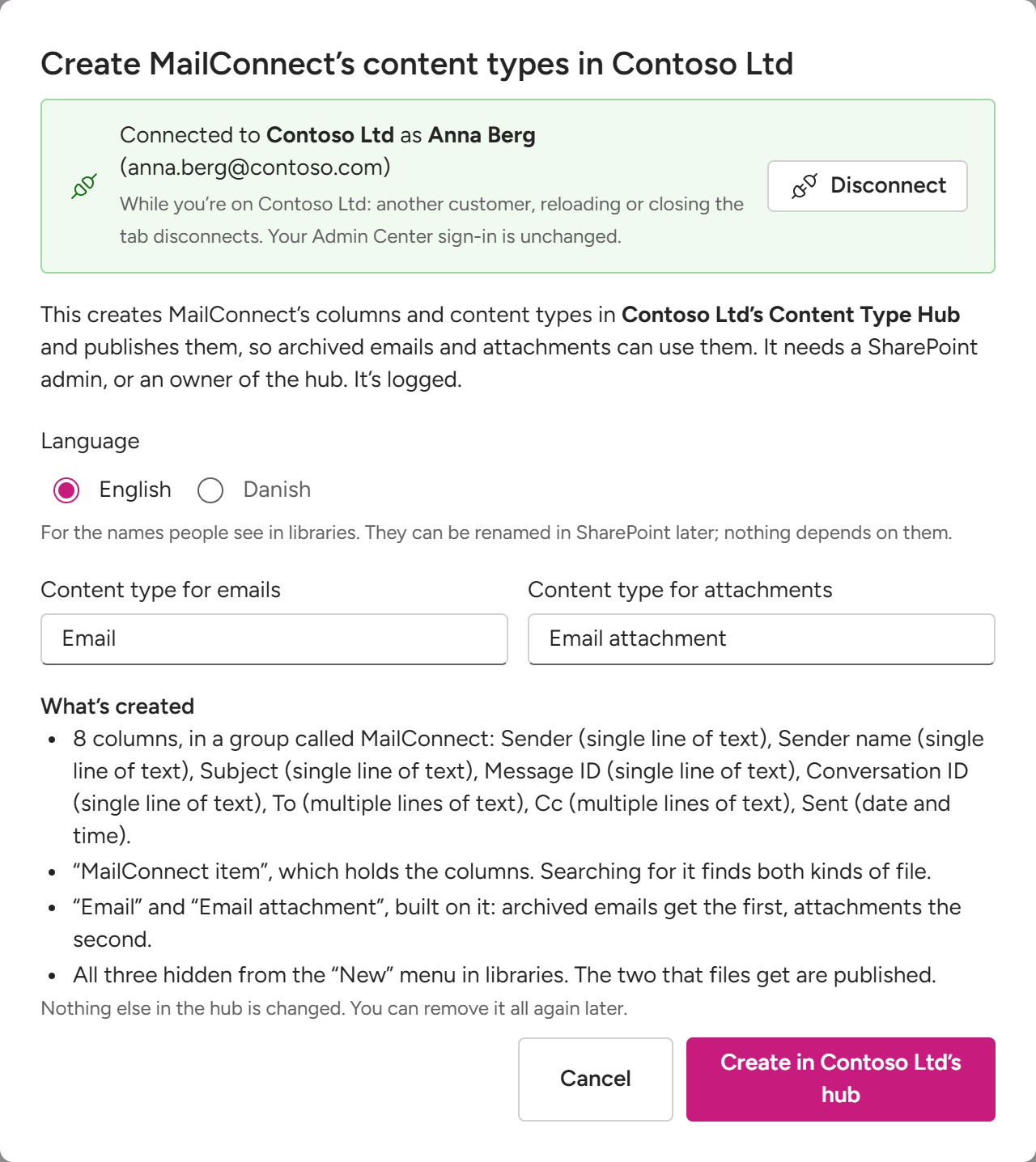
Using MailConnect’s content types
Create MailConnect’s content types… creates them in your Content Type Hub and publishes them:
- 8 site columns in a group called MailConnect: Sender, Sender name, Subject, Message ID and Conversation ID (single line of text), To and Cc (multiple lines of text), and Sent (date and time).
- MailConnect item, hidden, which holds the columns.
- Email and Email attachment, built on it: archived emails get the first, attachments the second. Both are hidden from the New menu in libraries.
Choose English or Danish for the names people see. You can rename them in
SharePoint later: nothing depends on the names. The columns’ internal names are
fixed: MCFrom, MCFromName, MCSubject, MCMessageId, MCConversationId,
MCTo, MCCc and MCSent.
Creating them needs a SharePoint admin, or an owner of the Content Type Hub. The dialog shows each step as it happens. If it stops, what’s done stays in the hub, and Try again reuses it and carries on. When it’s done, Use them fills in the setup with the new content types and columns: check it, then select Save for Contoso Ltd.
Using your own content types
Set up from Contoso Ltd’s SharePoint… (or Change setup… once it’s set up):
- Content type for archived emails: pick one from your Content Type Hub.
- Content type for archived attachments: a different one, or None: the library’s default.
- Columns filled from the email: for each value, pick a column of those content types, or Not filled.
- Select Save for Contoso Ltd.
Only columns that can hold each value are offered. MailConnect writes all the columns in one go, so a single column that can’t take its value would fail every column for that file.
| Value | Column type |
|---|---|
| Message ID | Single line of text only: SharePoint search only finds it there. |
| To, Cc | Multiple lines of text. A single line of text holds 255 characters, so one long To line would fail every column for that email. |
| Sent | Date and time, or text. |
| Everything else | Single or multiple lines of text. |
Already archived by a colleague
The card’s second switch, Already archived by a colleague, shows in Outlook when someone at Contoso has already archived the email you’re looking at. It needs:
- Fill SharePoint columns on;
- a content type for archived emails;
- a column for the Message ID: a single line of text site column, published through the Content Type Hub. MailConnect’s own Message ID column is one.
It searches the message ID column, so it finds an email once SharePoint has indexed it: from minutes to hours after it’s archived. While it’s on, the email content type and the message ID column can’t be taken out of the setup.
Re-check against SharePoint
The setup only holds IDs and internal names, so nothing notices when someone changes the Content Type Hub later. Re-check against SharePoint compares the saved setup with your hub as it is now, and saves nothing. It lists:
- problems: a content type that’s no longer in the hub or no longer published, a column that’s no longer on the content types or is hidden or read-only there, or a column that can’t hold its value;
- warnings: To or Cc in a single line of text, or a message ID in multiple lines of text.
Change setup… takes you to the fix. The check can’t see a library’s own copy of a content type, or whether search has indexed the message ID column yet.
Switching it on and off
Fill SharePoint columns can only come on once it’s set up. Whether you can switch it yourself depends on your plan and on whether the feature has been released to everyone: if you can’t, the card says who does it.
Switching it off while Already archived by a colleague is on asks first: Turn off “Fill SharePoint columns”? Already archived by a colleague needs it, so Turn both off switches both off. You can switch both on again later: the setup is kept.
Clear removes the setup itself. From then on, archived emails get no content type and no columns, and Already archived by a colleague is switched off. Emails already archived keep theirs, and nothing changes in your SharePoint.
Removing MailConnect’s content types
Remove MailConnect’s content types… takes out of your Content Type Hub only what MailConnect created: its column group, its columns, MailConnect item and the two content types built on it. If your setup uses them, it first switches off Fill SharePoint columns. Files already archived keep their content type, columns and values, and libraries keep their copies of the content types. You confirm with I understand before anything is removed.
History
History, under the card, lists every change to the setup and the two switches. Restore puts an earlier version back.
Questions? Contact [email protected].