Settings
The Settings tab holds MailConnect’s settings for everyone in your organisation. Everyone with access sees it, and Admins can change it. What you change here changes for everyone at Contoso, the next time they open MailConnect.
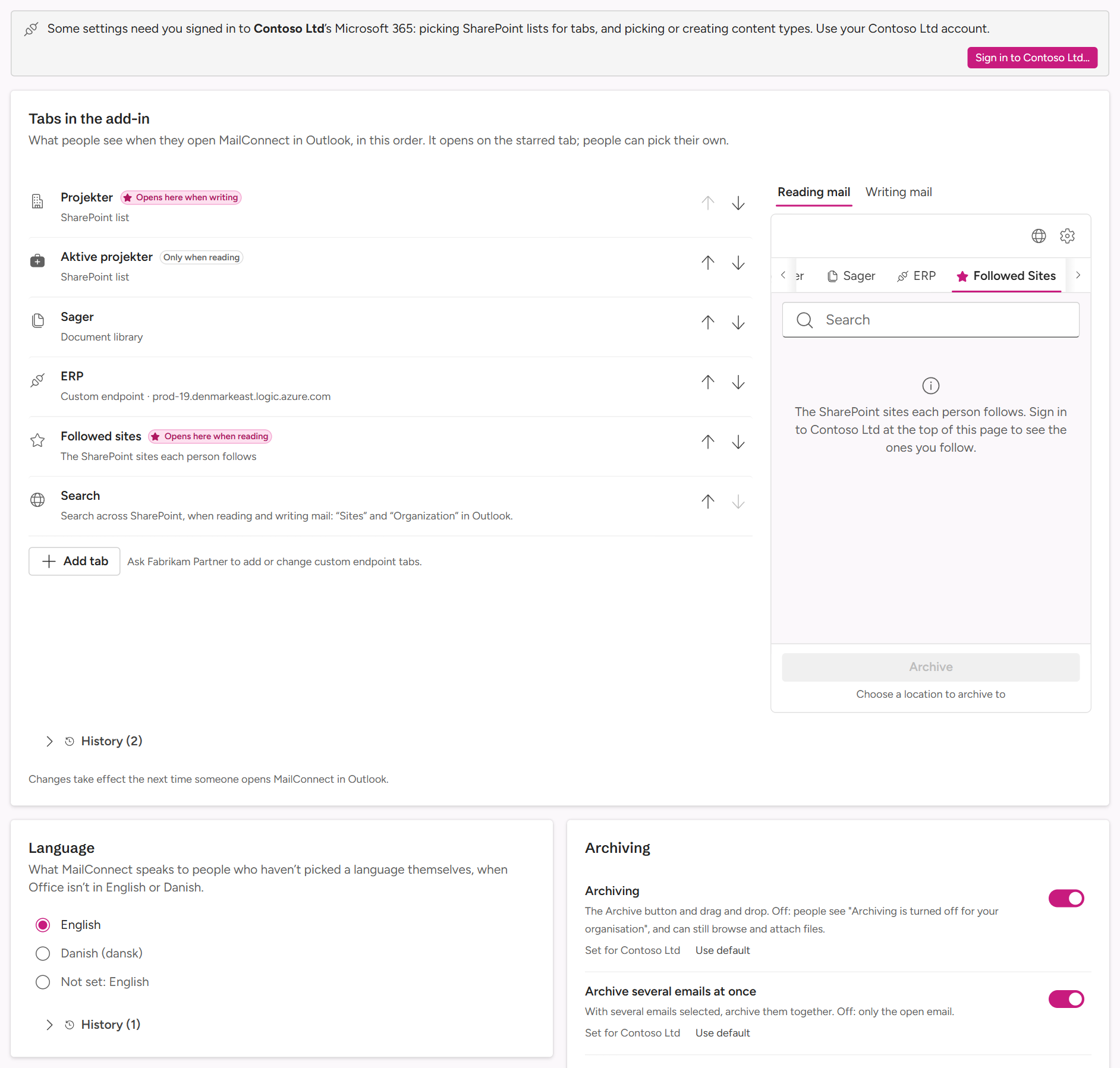
What’s on the tab
From the top:
| Card | What it sets | More |
|---|---|---|
| Sign in to Contoso Ltd… (a strip) | Signs you in to your own Microsoft 365, for the settings picked from your SharePoint. | Signing in to your Microsoft 365 |
| Tabs in the add-in | The tabs people see in MailConnect, their order, and where MailConnect opens. | Setting up tabs |
| Language | The language MailConnect falls back to. | Below |
| Feature cards | Which MailConnect features are on, one card per category. | Below |
| Outlook category on archived emails | The category put on archived emails. It sits with the features of its category. | Outlook category |
| Fill SharePoint columns | The content types and columns filled in when emails are archived. It sits with the features of its category. | Filling SharePoint columns |
The cards are laid out in two columns, one on narrow screens.
Language
Language sets what MailConnect speaks to people who haven’t picked a language themselves, when Office isn’t in English or Danish. Choose English or Danish (dansk). Not set says what applies instead: usually English, or the language of an older setting, which the card names.
MailConnect picks each person’s language in this order:
- Their own choice, in MailConnect’s settings.
- Office’s display language, if it’s English or Danish.
- The language set here.
- English.
Features
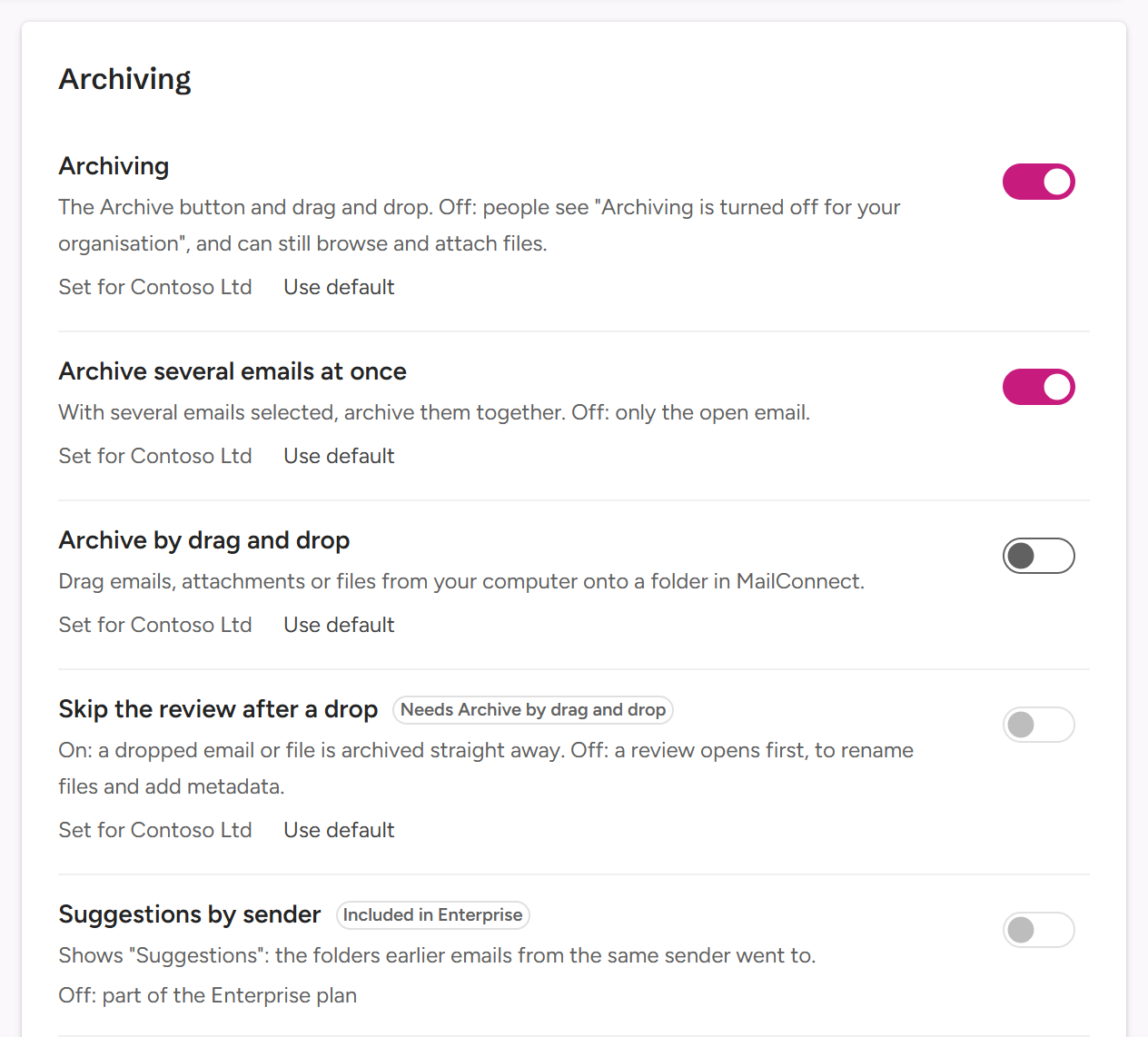
Each feature card holds a category of features. Every row is one feature: its name, what it does, a switch, and where its value comes from.
| Shown under the feature | Meaning |
|---|---|
| Default | MailConnect’s default for your plan applies. |
| Set for Contoso Ltd | Someone switched it for your organisation. |
| Off: part of the … plan | It’s off because it belongs to a higher plan. |
Use default, next to Set for Contoso Ltd, removes the value set for your organisation, so the default applies again. Defaults can change as MailConnect develops: features on Default follow those changes, features set for Contoso keep their value.
Who can switch what
- Admins switch released features on and off, within your plan. Your partner’s Owners and Managers, and Pinksky, can too.
- Viewers see the switches but can’t change them: Only admins can change this.
- Switching a feature off is never limited by your plan.
- A feature can’t be switched on while a feature it needs is off.
- Features above your plan, and features not yet released to everyone, are switched on by your partner or Pinksky.
Hover over a switch you can’t change to see why.
Badges
| Badge | Meaning |
|---|---|
| Needs … | The feature needs another feature, named in the badge, to be on first. |
| Early access | Not released to everyone yet: your partner or Pinksky switched it on for you. You can see it, but not change it. |
| Included in … | Part of a higher plan than yours, named in the badge. |
When changes reach people
MailConnect reads its settings when it opens. A change reaches each person the next time they open MailConnect. Someone who has it open can pick up the change straight away with Clear Cache in MailConnect’s own settings.
If someone else changes the same thing at the same moment, the Admin Center says so, and you try again.
History
The Language, Tabs, Outlook category and Fill SharePoint columns cards each have History: every change, when it was made and by whom. Restore puts an earlier version back, which counts as a new change. Changes to the feature switches are listed under Recent changes on the People tab.
Questions? Contact [email protected].