Managing people
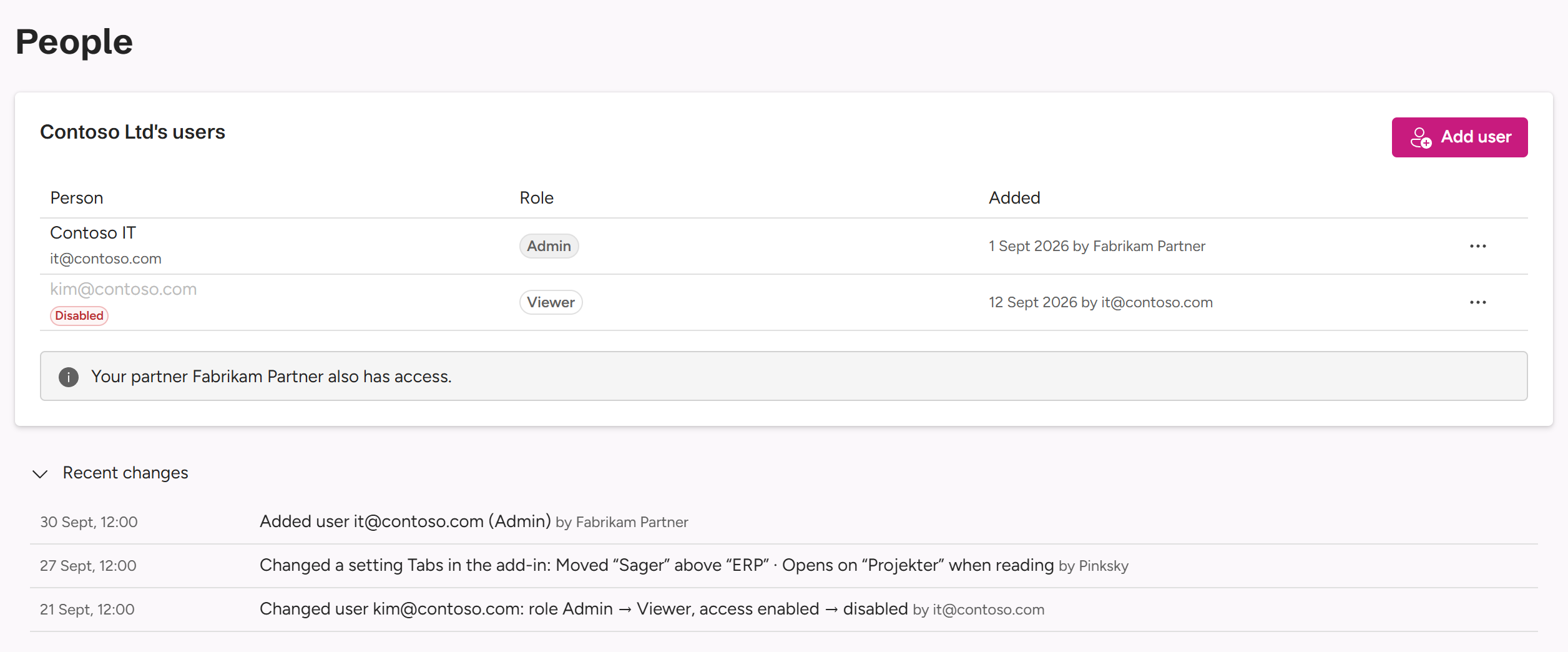
The People tab lists who in your organisation can open it in the Admin Center. Only Admins get this tab.
Admins and Viewers
| Role | What they can do |
|---|---|
| Admin | See Contoso’s usage, overview and settings, change MailConnect’s settings, and add, change or remove Admins and Viewers. |
| Viewer | See Contoso’s usage, overview and settings. They can’t change anything, and don’t get the People tab. |
Your Entra roles play no part: a Global Administrator in Microsoft 365 has no access until someone adds them here.
Adding someone
- On People, select Add user. (New → Add user in the top bar does the same.)
- Enter their Sign-in address: their Microsoft work account, for example
[email protected]. - Optionally, a Name.
- Pick a Role: Admin or Viewer.
- Select Add.
They get access the first time they sign in at admin.getmailconnect.com. Until then, the list shows Not signed in yet under their name.
The first sign-in ties access to an account
When someone signs in for the first time, the Admin Center records which account, in which Microsoft 365 tenant, signed in. From then on, their access only works for that exact account. Someone who later gets the same address, in your tenant or another, can’t use it.
Changing or removing someone
Open ⋯ at the end of their row:
| Action | What it does |
|---|---|
| Edit | Change their name or role, or switch their access off and on. Their sign-in address can’t be changed: remove them and add the new address instead. |
| Disable access / Enable access | A disabled person stays on the list, marked Disabled, but can’t see anything until enabled again. |
| Remove | Takes their access away. The Admin Center asks you to confirm. |
Your partner and Pinksky
If you have a MailConnect partner, the page says Your partner Fabrikam Partner also has access. Your partner’s people can open Contoso in the Admin Center to support you, and their Owners and Managers can change your settings and manage your Admins and Viewers, as you can.
You don’t see your partner’s people by name: wherever they appear, for example in Added … by or in Recent changes, they show as Fabrikam Partner. Pinksky can also open your organisation, to support you, and anyone at Pinksky shows as Pinksky.
Recent changes
Recent changes, at the bottom of the page, lists what was changed, when and by whom:
- people added, changed or removed in your organisation;
- changes to your settings and features;
- changes to your subscription’s seats, and a cancellation or its end.
Changes made by your own people show their sign-in address. Changes made by your partner’s people show Fabrikam Partner, and changes made by Pinksky show Pinksky. Changes to your partner’s or Pinksky’s own staff aren’t listed.
Questions? Contact [email protected].