Outlook category on archived emails
When someone archives an email, MailConnect can put an Outlook category on it, so it’s easy to see and filter what’s been filed. The Outlook category on archived emails card on the Settings tab sets this up for everyone in your organisation.
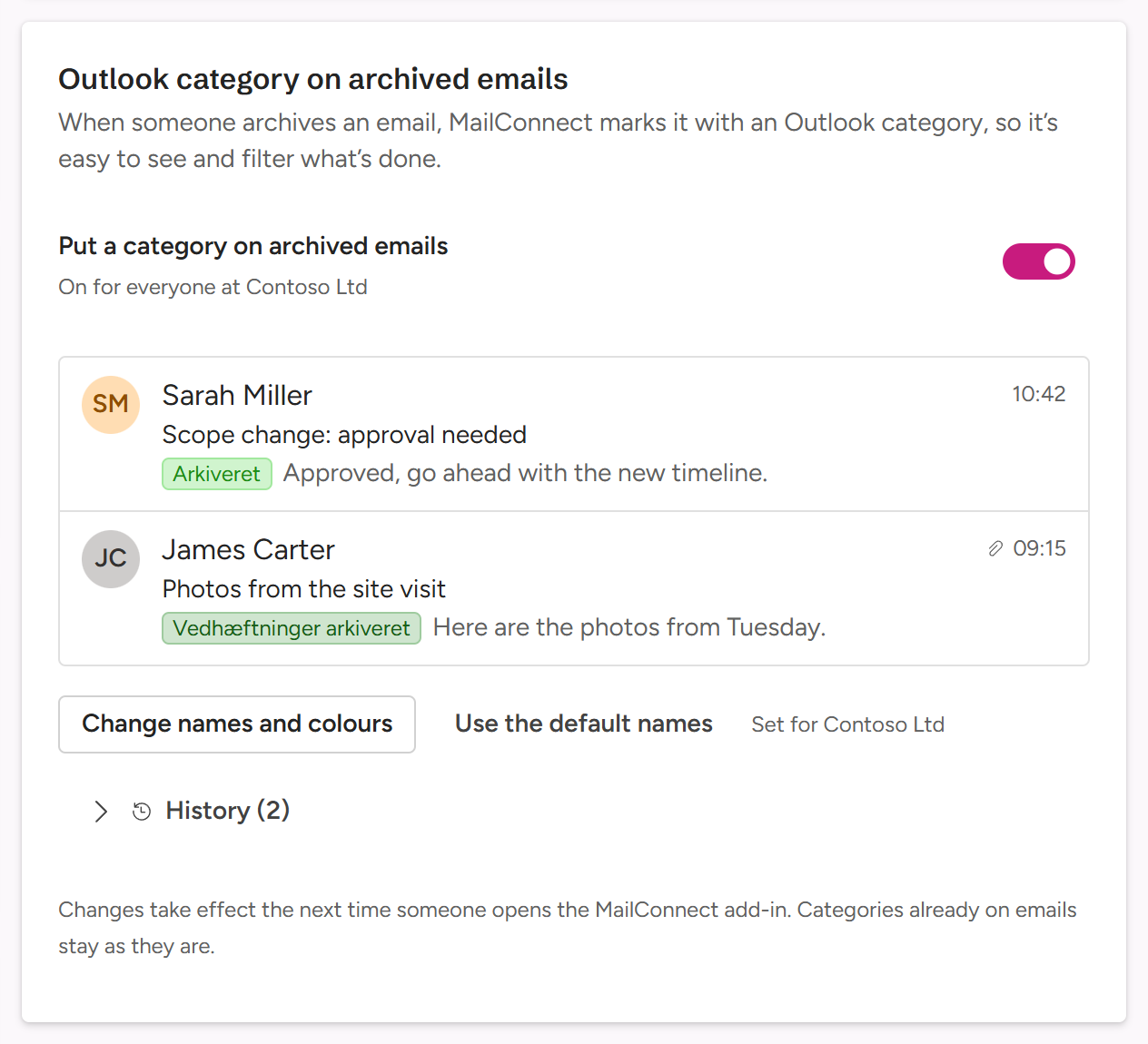
Two categories
| Category | Put on an email when | MailConnect’s default |
|---|---|---|
| Archived emails | the email itself was archived | Archived, blue |
| Only attachments archived | only its attachments were archived | Attachments archived, teal |
The card shows two sample emails, as they’d look in Outlook’s message list with the categories on them.
Switching it on and off
Use the switch Put a category on archived emails. The card then says On for everyone at Contoso Ltd, or Off. If the switch is greyed out, hover over it to see why: only Admins can change it, and sometimes Pinksky switches it for you.
Changing the names and colours
- Select Change names and colours.
- For Archived emails and Only attachments archived, type a name and pick a Colour. Use your own language: everyone in the organisation gets the same names. The two names must differ, and each can be up to 255 characters.
- Select Save.
Use the default names goes back to MailConnect’s names and colours. The card says which apply: Set for Contoso Ltd or MailConnect’s default names.
Good to know
- Changes take effect the next time someone opens MailConnect. Categories already on emails stay as they are.
- The category is added to each person’s own category list, in their own mailbox.
- History, under the card, lists every change, and Restore puts an earlier one back.
Questions? Contact [email protected].