Signing in to your Microsoft 365
Some settings are picked from your own SharePoint: the lists and libraries behind your tabs, and the content types and columns for Fill SharePoint columns. For those, the Settings tab asks you to sign in to your organisation’s Microsoft 365. It’s a second sign-in, separate from your Admin Center sign-in, which doesn’t change.
Signing in
- On Settings, select Sign in to Contoso Ltd… in the strip at the top. Everything that needs it stays greyed out until you do, and says where to sign in.
- The dialog explains what happens. Select Sign in to Contoso Ltd.
- Microsoft’s sign-in window opens. Pick your Contoso account. If you’re signed in to the Admin Center with a Contoso account, Microsoft suggests it, and you confirm it.
Microsoft’s window says MailConnect. It’s the MailConnect app your organisation approved when it installed MailConnect, so there’s nothing new to approve. If Microsoft asks you to accept permissions, cancel: it means MailConnect isn’t set up in that tenant, and nothing should be granted from here.
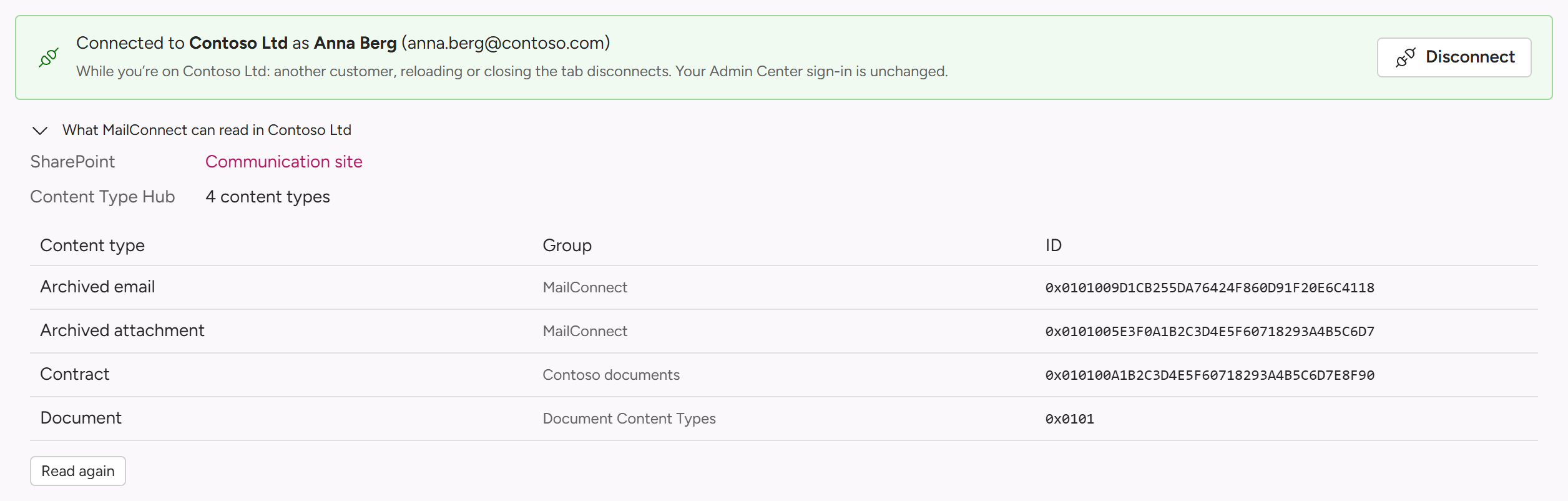
Once you’re signed in, the strip says Connected to Contoso Ltd as …, with Disconnect.
Who can sign in
Anyone who can change your settings: your Admins, your partner’s Owners and Managers, and Pinksky. They need an account in your Microsoft 365: their own, or a guest account you’ve given them. Accounts from anywhere else are refused. With a guest account, the strip says so.
Everyone reaches only what their account can reach in SharePoint. Guests often get no search results when picking a site: they paste a link to the site instead.
What it reads
Everything MailConnect reads here is read in your browser and shown only to you. It sends only read requests, and one Microsoft Search request, which changes nothing either. What MailConnect can read in Contoso Ltd, under the strip, shows the first reads: your SharePoint’s root site and the content types in your Content Type Hub. Read again repeats them.
Nothing read is sent to or stored by Pinksky. Only what you save is, such as a tab’s site, list and column names. The full list of reads is under What the Admin Center can do in your tenant.
What it can change
Only one thing: creating and removing MailConnect’s own content types and columns in your Content Type Hub, when someone selects Create MailConnect’s content types… or Remove MailConnect’s content types… on the Fill SharePoint columns card, and confirms. Each step is shown as it happens. Nothing else is written to your tenant.
How long it lasts
The sign-in lasts while you’re on your organisation’s pages. Opening another organisation, reloading the page, closing the tab or Disconnect ends it. None of these signs you out of Microsoft, and your Admin Center sign-in stays as it is. Disconnect waits while content types are being created or removed.
Every connection is logged
Each sign-in is recorded in Pinksky’s audit log: who signed in from the Admin Center, which account was used, whether it was a guest, and whether each read worked. If the log can’t be written, the connection is ended and nothing is shown.
If it doesn’t connect
| Message | What to do |
|---|---|
| The sign-in window was blocked | Allow pop-ups for admin.getmailconnect.com in your browser, then try again. |
| Not connected: you signed in as …, which isn’t an account in Contoso Ltd | Try again with an account in your organisation. |
| Not connected: that account isn’t in Contoso Ltd’s directory | Try again with an account that’s a member of, or a guest in, your organisation. |
| Not connected: Microsoft asked for permissions | MailConnect isn’t set up in that tenant. See Installation. |
| Couldn’t record the connection in the audit log | Try again. |
Questions? Contact [email protected].